

Search Blog
Recent Posts
-
 The Frictionless Checkout...
Learn how to reduce B2B cart abandonment by optimizing your PrestaShop checkout with flexible forms, file uploads,...
Jul 6, 2026 Read more
The Frictionless Checkout...
Learn how to reduce B2B cart abandonment by optimizing your PrestaShop checkout with flexible forms, file uploads,...
Jul 6, 2026 Read more -
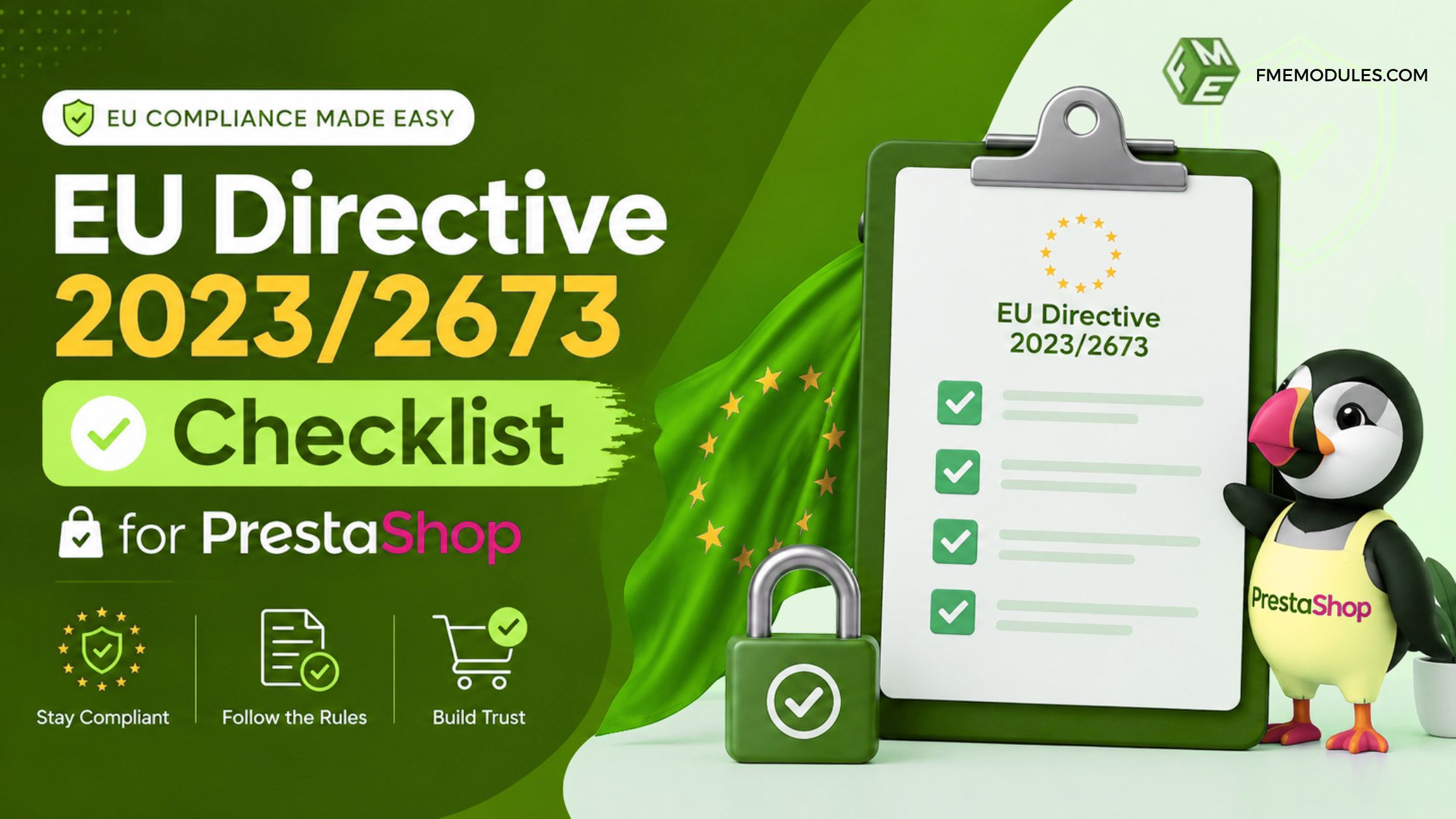 EU Directive 2023/2673...
Learn how to prepare your PrestaShop store for EU Directive 2023/2673 with a practical compliance checklist that...
Jul 3, 2026 Read more
EU Directive 2023/2673...
Learn how to prepare your PrestaShop store for EU Directive 2023/2673 with a practical compliance checklist that...
Jul 3, 2026 Read more -
 Ecommerce SEO for Google &...
Learn how online stores can improve visibility in Google, AI Overviews, ChatGPT, Gemini, and other AI search...
Jun 8, 2026 Read more
Ecommerce SEO for Google &...
Learn how online stores can improve visibility in Google, AI Overviews, ChatGPT, Gemini, and other AI search...
Jun 8, 2026 Read more -
 How to Use PrestaShop...
This blog post looks into how you can use prestashop modules effectively and how you can enhance your store's...
May 5, 2026 Read more
How to Use PrestaShop...
This blog post looks into how you can use prestashop modules effectively and how you can enhance your store's...
May 5, 2026 Read more -
 Best Shopping Cart for SEO...
This blog compares the best shopping cart platforms for SEO in 2026, including Shopify, WooCommerce, Magento,...
Apr 20, 2026 Read more
Best Shopping Cart for SEO...
This blog compares the best shopping cart platforms for SEO in 2026, including Shopify, WooCommerce, Magento,...
Apr 20, 2026 Read more

PrestaShop Registration Form Customization Guide for B2B & eCommerce Stores

Posted On: Jul 31, 2024
Categories: PrestaShop SEO Best Practices: Guides, Checklists & Tips
Customizing the registration form is one of the most overlooked optimization opportunities in PrestaShop stores.
Many merchants rely on the default customer signup form, even though it often lacks important fields needed for B2B onboarding, customer segmentation, VAT collection, or personalized marketing.
A well-optimized registration form not only improves the customer experience but also helps businesses collect meaningful data without creating unnecessary friction during signup.
The Quickest Way of Customizing Prestashop Registration Form!
You can effortlessly customize your PrestaShop registration form using the PrestaShop Custom Registration Field Module. This complete, one-stop solution guide will walk you through the process of enhancing your registration forms to collect valuable customer information, improve user experience, and streamline your store's operations.
We'll cover everything from installation and configuration to advanced customizations and troubleshooting. Let's get started!
According to a study by Baymard Institute, 28% of online shoppers abandon their carts due to a long or complicated checkout process, which often starts with registration.
However, adding too many fields can also increase friction during registration.
The key is to balance data collection with user experience by only asking for information that is truly necessary. Many successful stores use conditional fields to display additional questions only when relevant.
Why the Default PrestaShop Registration Form Is Limited
The default PrestaShop registration form works well for basic stores, but it quickly becomes restrictive for businesses that need additional customer information.
For example, many stores need to collect:
- VAT or tax identification numbers
- Business information for B2B customers
- File uploads and verification documents
- Customer preferences
- Industry-specific information
- Custom onboarding details
Without custom registration fields, merchants often rely on complicated workarounds or manual follow-ups, which slows down customer onboarding and creates extra administrative work.
How Custom Registration Fields Improve the PrestaShop Signup Experience
The PrestaShop Custom Registration Field Module is a powerful tool designed to help store owners add, manage, and customize fields in the customer registration form. This flexibility allows you to gather specific information from your customers that is essential for your business operations. Key features include:
-
Adding Various Field Types: The module supports a wide range of field types such as text fields, dropdowns, checkboxes, radio buttons, and more, allowing you to collect the exact data you need.
-
Customizing Field Labels and Validation: You can personalize field labels to match your brand's voice and set validation rules to ensure data integrity.
-
Displaying Custom Fields on Various Admin and Customer Pages: The module allows you to show custom fields on customer detail pages, order detail pages, invoices, and even in the customer's account section.
If your store operates in the B2B sector, we also offer a specialized B2B Registration Module that helps capture essential business details during signup to better qualify leads and support business client onboarding.
Whether you want to add VAT fields for B2B customers, collect marketing preferences, enable file uploads, or create conditional registration workflows, customizing your PrestaShop registration form can significantly improve customer onboarding and lead qualification.
With the PrestaShop Custom Registration Fields Module, store owners can create advanced signup experiences without coding while reducing registration abandonment and improving conversion rates.
For example, many store owners struggle with collecting detailed customer information during the registration process.
By utilizing custom fields, you can gather data like customer preferences, additional contact information, and more, which can be crucial for personalized marketing and improving customer service.
Let's expand on the guide by detailing the installation process and configuration steps, followed by advanced customization options.
Different types of online stores use custom registration fields for different purposes.
For example:
- Wholesale stores often collect VAT numbers and reseller information
- Fashion brands may ask for customer preferences and sizing details
- Healthcare stores may require compliance-related information
- Multi-vendor marketplaces may need seller verification documents
- B2B stores frequently use approval workflows before activating accounts
These additional fields help businesses personalize onboarding and improve customer management.
Installation Instructions
Once you identify the information your business needs during customer registration, the next step is implementing custom fields properly inside PrestaShop.
Before making changes to your store, it is always recommended to test modifications on a staging environment and backup your files and database.
-
Log into the PrestaShop administration panel, go to Modules → Click Add new module.
-
Select registrationfields.zip which you downloaded and click Upload this Module.
-
Scroll down to find Registration Fields and click Install.
-
Clear Cache in Advance Parameters → Performance.
-
The Module will add an extra Tab Link in Back Office Edit Product and you will see the tab on the left.
-
A preview of the customized product will be shown with the order on the order detail page.
User Guide On The Workflow Of Prestashop Registration Form Module
Best Practices for Configuring Registration Fields:
At the back office, go to "Module & Services" and click on the "Installed Modules" tab. Here you will find our module. Click on "Configure" to continue.
-
Registration Fields Heading
-
Show Fields on Admin Customer Detail Page: Display custom registration fields in the admin customer detail page.
-
Show Fields on Admin Order Detail Page: Display custom registration fields in the admin order detail page.
-
Show Fields on Invoice Page: Display custom registration fields in the invoice.
-
Show Fields on My Account: Display a separate section for registration fields in the My Account section where the user will be able to see custom fields.
-
Show Fields on Information/Registration: Display registration fields in My Information under the My Account section or during new customer registration.
-
Restrict New Registrations: Option to enable the admin approval for the user account validation. If enabled, the user will be able to use his account after the admin manually approves it.
-
Enable Group Selection: Option to display group selection on the registration form. If enabled, users will be allowed to select the user group on the registration form.
-
Selected Groups: Only these selected groups will be shown for selection to the users.
-
Message for Pending Registrations: Show a custom message to the users where registration is pending.
-
Additional Customer Groups: Admin can assign a default user group to the new registered user automatically. Should not be when the admin has enabled group selection for users.
-
Redirect After Registration: Option to add a URL to redirect users after registration.
-
Lock Fields: Option to make fields not editable in the user's My Account section.
How to Add/Manage Registration Fields:
Step 1: At the back office, go to "Manage Custom Fields". Here you will find all the fields. Click on "+ Add New Field" to continue.
Step 2: Here you can add your fields' information.
-
Field Name
-
Field Size: Select the number of characters that are allowed for this field
-
Block Heading: Select the block in which you want to show this filed. More on that later
-
Field Type: Select the type for this field. There are following field types
-
Text Field
-
Text Ares
-
Date
-
Yes / No
-
Multiple Select
-
Dropdown
-
Checkbox
-
Radio Button
-
File Attachment
-
Message
-
Default Value: This will be the default value for this field
-
Field Validation: Allows you to see if the data entered to this field is in correct format. If you select "Date" here, user will only able to add date in this field.
-
Editable: If enabled user will be able to edit the data later.
-
Values Required: Option to make this field mandatory
-
Field Status
-
Dependent Field: Option to make field dependable. More on this in next step
Step 3: Now at the front end your field will appear as the following. You can always go back and edit this information.
How to Use Dependable Fields:
Dependable fields are those fields where input option is dependent on what user selects. See the image below for more clarification.
-
When you are adding a field from the backend, enable the dependent field option at the end.
-
Next Select the field on which the current field will be dependent.
-
Then select the dependent field value
Now your current field will only appear if the customer selects the "1.7.x.x" option in the "Favorite Prestashop version" option.
Custom Field Headings: At the back office, go to "Custom Field Headings". Here you will find all the headings created. Click on "+ Add New Heading" to continue.
Add Custom Field Heading: Admin can create multiple field headings to use at the front end.
Disclaimer
-
It is highly recommended to backup your server files and database before installing this module.
-
No responsibility will be taken for any adverse effects occurring during installation.
-
It is recommended you install on a test server initially to carry out your own testing.
Support
-
If you need more information or have any questions or problems, please refer to our support helpdesk
-
You can log a ticket and a support technician can assist you further.
Customization
If you have requirements that are not covered by our module and you need to have our module customized, feel free to contact us through support helpdesk.
Common Mistakes to Avoid When Customizing Registration Forms
Many stores unintentionally reduce signup conversions by making registration forms too complex.
Some common mistakes include:
- Asking for too much information upfront
- Making unnecessary fields mandatory
- Using unclear field labels
- Creating long forms that are difficult on mobile devices
- Not validating customer input properly
- Displaying irrelevant fields to all users
A cleaner and more focused registration experience usually results in better engagement and lower abandonment rates.
Managing and Maintaining Custom Fields
Best Practices
When it comes to managing your PrestaShop registration form, keeping your custom fields up-to-date is key. Here are some best practices to help you stay on top of things:
-
Regular Reviews and Updates
Just like any part of your online store, custom fields need regular reviews. Check if the information you're gathering still aligns with your business goals. Are there fields that no longer serve a purpose? Update or remove them as needed to keep your form streamlined and relevant.
-
Archiving Unused Fields
Instead of outright deleting fields you no longer need, consider archiving them. This way, you retain the data for future reference or analysis without cluttering your active registration form. It's like spring cleaning for your PrestaShop registration form!
Handling Data
The data you collect from your PrestaShop registration fields is a goldmine. Here's how to handle it effectively:
-
Export for Analysis
Regularly export the data collected through your custom fields. This will help you analyze customer preferences and behaviors. Tools like Excel or Google Sheets can be handy for sorting and interpreting this information.
-
Tailor Marketing Strategies
Use the insights gained from your data analysis to fine-tune your marketing strategies. For instance, if you notice a significant number of customers are interested in a particular product category, you can create targeted campaigns to boost sales in that area. Personalized marketing leads to happier customers and better business outcomes.
Regular Maintenance
Keeping your PrestaShop registration form in tip-top shape involves regular maintenance:
-
Module Updates
Always check for updates to the PrestaShop Custom Registration Field Module. These updates often include bug fixes and new features that can improve your form's functionality. Staying current ensures your registration form works smoothly.
-
Periodic Testing
Periodically test your registration form to ensure it's functioning correctly. This helps catch any issues early before they affect your customers. Try registering as a new user yourself to see if everything runs as expected.
Troubleshooting Common Issues
Even with a robust tool like the PrestaShop Custom Registration Field Module, you might run into a few hiccups. Here are some common issues and their solutions to keep your PrestaShop registration form running smoothly:
1. Fields Not Saving
One frustrating problem is when fields don't save properly. This usually stems from missing or incorrect configurations. Here's what to do:
Solution:
-
Check Required Fields: Make sure all required fields in the module settings are filled out. Missing mandatory fields can block the saving process.
-
Correct Data Format: Verify that the data entered is in the correct format. For example, if the field is set to accept dates, ensure the input is a date.
-
Clear Cache: Sometimes, cached data can prevent changes from showing. Clear the cache by going to Advanced Parameters → Performance.
-
Check for Errors: Look for error messages when trying to save fields. These messages can provide valuable clues about what's going wrong.
2. Removing Unwanted Fields
Over time, you might find certain fields are no longer necessary. Removing these can declutter your PrestaShop registration form.
Solution:
-
Navigate to Manage Custom Fields: Go to the Manage Custom Fields section in the back office.
-
Delete or Disable Fields: Identify the fields you don't need. Choose to delete them or disable them if you might need them in the future.
-
Confirm Changes: Save your changes and check the front-end to ensure the fields have been removed.
3. Module Conflicts
Sometimes, conflicts between modules can cause issues. Identifying and resolving these conflicts is crucial for a functional site.
Solution:
-
Identify Conflicts: Temporarily disable other modules one by one to see if the issue is resolved. This helps pinpoint the conflicting module.
-
Consult Support: If disabling a particular module resolves the issue, contact the support team for that module for a permanent fix.
-
Update Modules: Ensure all your modules, including the PrestaShop Custom Registration Field Module, are updated to the latest versions. Updates often include bug fixes and compatibility improvements.
Final Thoughts
You need to customize your PrestaShop registration form for enhancing user experience and collecting valuable customer data. By following all the best practices listed above for managing and maintaining custom fields, handling data effectively, and troubleshooting common issues, success is yours.
You can ensure your registration process is smooth and efficient. Stay updated with module updates and regularly test your form to keep it in top condition. With these strategies, your PrestaShop registration form will become a powerful tool for growing your online business.
-
What is a registration module in PrestaShop?
A registration module allows store owners to customize the default PrestaShop signup form by adding custom fields, approval workflows, file uploads, and B2B registration options.
-
Why should I customize the PrestaShop registration form?
Customizing the registration form helps collect relevant customer data, improve onboarding, support B2B workflows, and reduce signup friction.
-
How do I add a module to PrestaShop?
Go to Modules > Module Manager, upload the ZIP file, and click Install.
-
How do I set up a PrestaShop store?
Download PrestaShop, upload it to your server, run the installation wizard, and configure your store settings.
-
How do I install a custom registration module in PrestaShop?
Upload the module from the back office, install it, configure the settings, and clear the cache after installation.
-
How can I add custom fields to the PrestaShop registration form?
Use a custom registration field module to create and manage fields like text boxes, dropdowns, checkboxes, and file uploads.
-
What types of custom fields can be added in PrestaShop?
You can add text fields, text areas, dropdowns, radio buttons, checkboxes, date fields, file attachments, and conditional fields.
-
How do I customize the customer registration form in PrestaShop?
You can customize the form by adding, removing, or editing fields through the module settings.
-
How do I make registration fields required in PrestaShop?
Enable the “Required Field” option while creating or editing the field in the module settings.
-
Can I create conditional registration fields in PrestaShop?
Yes, conditional fields can display dynamically based on customer selections during registration.
-
Can customers upload files during registration in PrestaShop?
Yes, file upload fields can be added for documents like licenses, certificates, or verification files.
-
How do I save a new field added to the registration form?
After configuring the field settings, click Save in the module configuration panel.
-
How can I remove unused registration fields in PrestaShop?
Go to the custom fields section and disable or delete the fields you no longer need.