




Why Hiding Prices from Guests is a Core B2B Strategy
To hide prices from guest visitors in PrestaShop without damaging SEO, use customer group permissions to restrict price display to registered-only groups, while ensuring product pages remain fully crawlable by Google. For a solution, install a dedicated module like PrestaShop Private Shop, which automatically applies group-based restriction, preserves meta tags, and adds canonical URLs to protect index integrity. Always test with Google Search Console after implementation.
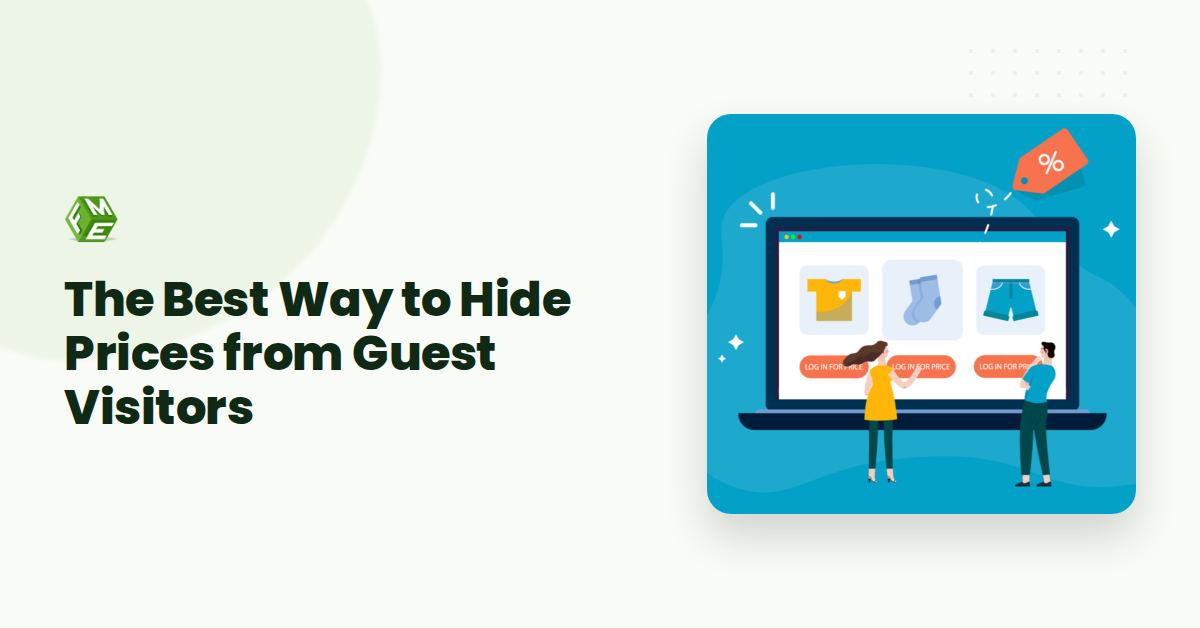
In a B2B store, listing prices publicly for every visitor creates real commercial friction. Your wholesale customers expect negotiated pricing, volume discounts, or contract rates that cannot be displayed to anonymous shoppers. At the same time, your competitors can easily scrape public pricing and undercut your margins. The solution is simple: hide prices from guest users and show them only to logged-in, approved customers.
The risk is that Google's crawler behaves like a guest visitor. If you block price elements using CSS or JavaScript that also blocks the crawler, Google may de-index those product pages entirely. The average ecommerce conversion rate sits at 3.65%, but losing organic visibility means losing that traffic altogether. The correct approach uses PrestaShop's native customer group logic: assign all products to a group that hides price display while keeping product content, meta titles, and descriptions fully accessible to search engine bots. This way, your product pages stay indexed, your prices stay private, and your B2B customers see exactly what they need at login.
How Google Indexes Your Product Pages (And Why Blocking Prices Can Break It)
When a logged-out visitor lands on your PrestaShop store, Googlebot sees the exact same page. If your method for hiding prices relies on JavaScript that removes the price element after the page loads, or if you use CSS to set display: none on the price container, you are sending mixed signals to search engines. Googlebot can render JavaScript, but its rendering budget is limited. Pages that require heavy client-side processing to display core content like pricing often get indexed incompletely or with significant delays.
The real danger is not that Google cannot see your prices. The danger is that Google interprets the page as incomplete or low quality. This happens most often with modules that hide prices by setting the price field to zero or by wrapping it in a condition that relies on a logged-in session variable. Googlebot is not logged in, so it sees a blank space where a price should be. That empty field can negatively affect your ranking signals for that product URL.
Search engines rely on consistent, static HTML content to understand page value. If your price hiding method strips the price from the HTML before it reaches the browser, you lose that signal entirely. The better approach is to keep the price in the HTML for Googlebot to read, but control its display to human visitors using server-side logic that does not remove the data. The PrestaShop Private Shop module handles this correctly by keeping price data in the source while restricting visual access to logged-in users only.
Step 1: Configure Customer Groups in PrestaShop
This is where the delicate balance begins. You will use PrestaShop's native group permissions to strip price visibility from non-logged-in visitors while keeping the underlying product pages accessible to search engine bots. The key is to remove the price display permission without blocking page access.
A logged-out visitor who cannot see a price but can read the product description is still a page that Google can index. A visitor who hits a 404 or a login wall is a dead end for both the user and the search crawler.
Step 1.1: Create a dedicated guest group
By default, PrestaShop includes a "Visitor" group for non-registered users. Many store owners reuse this group, but creating a separate group makes future management cleaner. Navigate to Customers → Groups in your back office. Click Add new group.
- Name: Enter something descriptive like "Guest (no prices)". This makes it obvious when you assign products later.
- Discount: Leave at 0.00. This group should not see any price data.
- Price display method: Select "Tax included" or "Tax excluded" to match your store default, but note that the group will not see prices anyway once you finish this step.
- Show prices: This is the critical toggle. Set it to No. This removes the price from all product pages, category listings, and cart previews for anyone belonging to this group.
Save the group. Repeat the same process if you also want to hide prices from the default "Visitor" group. Having two groups ("Guest (no prices)" and "Visitor (no prices)") lets you split traffic later if you need different catalogue restrictions.
Step 1.2: Reassign your default visitor group
Go to Shop Parameters → Customer Settings → Groups. Look for the Visitor group dropdown. Change it to the new "Guest (no prices)" group you just created. This ensures every non-logged-in visitor is automatically placed into the group with price visibility turned off.
If you leave the default "Visitor" group unchanged, logged-out visitors will still see prices because the default "Visitor" group still has "Show prices" set to Yes. This step is easy to overlook.
Step 1.3: Apply the group to all products
You can assign the group globally so every product inherits the restriction. From the Groups page, edit the "Guest (no prices)" group. In the Group access section, check the box for every product category or specific product. For a blanket approach, use the Select all checkbox. This prevents the group from being accidentally excluded from any product.
Once saved, browse your store in a private browser window. The product page should still load fully: the title, description, images, and attributes all appear. The price area is either blank or shows "Please sign in to see pricing" depending on your theme. Googlebot sees a normal page. The visitor sees a call to log in.
A potential issue lurks here. Some themes inject price data via JavaScript that native group permissions cannot block. If you still see prices after this step, your theme likely renders prices client-side. In that case, you will need the additional control that a dedicated module provides. The Prestashop Hide Price and Add to Cart Button Module handles those edge cases by overriding the template output directly.
This native group method works for the majority of PrestaShop 1.7 and 8.x installations. It requires no code editing and no third-party module. The search engine robot sees the page content without triggering a login wall. The guest sees the value of the product without the price tag, which encourages registration.
Step 2: Use a Private Shop Module for Automatic Restriction
Configuring customer groups by hand works well for small catalogues, but it becomes unmanageable the moment you have hundreds of products with tiered pricing. You need a single control panel that applies access rules everywhere at once, and does it without accidentally telling Google to go away.
That is where a dedicated module solves the headache. The FME's private shop module centralises every visibility switch into one interface. You enable it, choose which customer groups see prices, and let the module handle the rest, including the SEO flags that typically get broken by manual overrides.
Configuring a private shop module correctly is what separates a working B2B store from one that quietly loses organic traffic.
Why You Need Module-Level Control
When you hide prices through PrestaShop’s default permission system, you rely on the {hook} system to suppress the price block. That hook fires after the page loads, which means:
- The product and price data are still rendered in the HTML source.
- Googlebot sees the price even if a human guest does not.
- You get no control over which pages get
noindextags.
A private shop module intercepts the request before the page renders. It checks the visitor’s group, applies the visibility rule, and then, critically, writes the correct meta tags so search engines see exactly what you want them to see.
How the PrestaShop Private Shop Module Works
The module sits on top of PrestaShop’s native group system. You do not need to touch any template files or override Core classes. The workflow looks like this:
- Install and activate the module. Go to Modules → Module Manager, upload the zip, and click install. It adds a new menu item called "Private Shop" under your Admin panel.
- Select the groups you want to restrict. The module shows a list of all your existing customer groups. Tick the boxes for groups that should see prices, everyone else is blocked automatically.
- Choose the SEO behaviour. This is the decision that matters most. The module provides three options:
- Allow indexing with canonical URL: The product page stays indexable. Google sees a complete page minus the price block, and the canonical tag points to the same URL. No duplicate content risk.
- Block indexing for restricted pages: A
noindextag is added to every page a guest cannot access. Use this only for wholesale-only catalogues where you do not want public visibility at all. - Redirect to login: The module sends unauthenticated visitors to the login page, which is almost never the right choice for SEO unless your entire store is private.
- Save and test. The module applies the rules instantly. Open an incognito browser window, visit a product page, and verify that prices are hidden while the page itself remains crawlable.
What Happens Behind the Scenes
When the module blocks price visibility for a guest, it does two things that matter for SEO:
- It removes the price block from the
{product}->priceoutput without affecting the product schema or breadcrumb markup. - It writes a
tag pointing to the exact same URL, confirming to Google that this page is the authoritative version and not a duplicate of something else.
That combination- price hidden, canonical present, no noindex, keeps your product pages ranking while protecting the pricing information that belongs only to registered buyers.
Step 3: Verify SEO Health After Hiding Prices
Hiding prices from guests can inadvertently block search engine crawlers if not implemented carefully. You need to confirm that Google still sees your product pages as indexable, and that your price visibility restrictions only affect logged-out visitors, not bots. This step protects your organic traffic and prevents the issue of Google spending time on blocked pages.
Start with Google Search Console. Navigate to the URL Inspection tool and enter the full URL of one of your key product pages. Click "Request Indexing" and wait for the report. The tool will tell you if Google can index the page. If it shows "URL is on Google", your setup is working. If it shows "URL is not indexed" or "Crawled but not indexed", your price hiding module may be blocking search engine user agents.
The simplest way to confirm your setup is correct is to run a crawl test on your own site while logged out.If you see a "Blocked by robots.txt" warning, your module is applying restrictions to the Googlebot user agent, which it should not do. The fix is to reconfigure your module to only restrict prices for guest customer groups, not for search engine bots.
Next, check your crawl reports in Google Search Console. Look at the "Pages" report under "Indexing". Filter by "Not indexed" and look for product pages. If you see a high number of product pages marked as "Excluded" or "Crawled but not indexed", your price hiding configuration could be the cause. Cross-reference these against pages where prices are hidden. The goal is to have a low error rate on product page indexing after implementing restrictions.
For a more detailed audit, use the PrestaShop Quick Frontend Product Update module to quickly adjust stock visibility and price fields on test products during your verification process. Then re-run the Google Search Console URL Inspection tool to confirm the changes have been reflected in the crawl data.
Finally, set a monthly calendar reminder to recheck the URL Inspection tool for three to five representative product pages. This ensures that any updates to your price hiding module or PrestaShop core do not accidentally block Googlebot.
What to Do If Your Product Pages Drop From Search Results
After hiding prices from guests, the most common panic is opening Google Search Console and seeing a sudden drop in indexed product URLs. This usually happens because search engines treat restricted-access pages differently than fully public ones. The fix is straightforward but requires methodical checks.
The most common cause is a misconfigured robots.txt or a missing canonical URL, not the price-hiding module itself. Google can still crawl and index a page that hides prices, as long as the page loads fully and its content is accessible to the crawler. If your pages vanished, start with these three troubleshooting steps in order.
First, verify that your product pages return a 200 status code for unauthenticated users. Use a tool like the Chrome DevTools Network tab or a free HTTP header checker while logged out. If you see a 302 redirect to a login page or a 404 error, your access restrictions are too aggressive. The privat shop module by FME handles this correctly by keeping the page accessible while only hiding the price, but manual group permission settings in PrestaShop can accidentally block page access entirely.
Second, re-introduce or verify canonical URLs on restricted product pages. Some caching modules or SEO modules strip canonical tags when a page varies by customer group. Without a canonical URL pointing to the public version of the product, Google may see multiple versions of the same page and de-index the main one. Navigate to Shop Parameters > Traffic & SEO > SEO & URLs and confirm that your product page templates include . If you use a third-party SEO module, check its logs for any rewrite rules that strip canonicals on group-based page variants.
Third, resubmit your sitemap in Google Search Console. After hiding prices, your product pages still exist, but their content has changed (prices are now hidden). Google may need a fresh crawl to recognise that the page is still valuable and indexable. Go to Sitemaps in Search Console, find your product sitemap, and click the resubmit button. If your store has many products, consider splitting the sitemap into multiple files to speed up crawling. Monitor the Coverage report daily for the next week to confirm that your product URLs move from "Excluded" or "Crawled, not indexed" back to "Submitted and indexed."
Will Hiding Prices From Guests Hurt My Conversion Rate?
This is the question that stops many B2B store owners from implementing price controls. You worry that every hidden price means one fewer sale. But the data tells a different story for business-to-business ecommerce. The global average ecommerce conversion rate in 2026 sits in a 1.4%-3.0% band depending on the dataset. For B2B specifically, the rate is about 1.8% while B2C achieves roughly 2.1%. That gap is small. The bigger problem for B2B stores is the quality of the conversion, not the quantity.
When you leave prices visible to everyone, you attract price-shoppers who compare your store against a dozen competitors and abandon their cart the moment they find a cheaper option. For B2B customers calculating ROI or negotiating bulk deals, that dynamic hurts relationships. Hiding prices from guests often increases your lead quality and reduces cart abandonment from unqualified traffic. A returning customer converts at 3% to 5% compared to the 1% to 2% rate for new visitors. The customers who register to see your prices are already more invested, so they behave closer to that returning-customer benchmark.
The real risk is not conversion loss from hiding prices. It is losing SEO visibility because Google cannot crawl the page properly. As long as you serve a full product description, technical specs, and structured data to Googlebot, your organic traffic stays intact. The conversion conversation becomes about the quality of leads reaching your checkout, not the raw volume of anonymous browsers who walk past.
Hiding prices from unregistered visitors is a common B2B strategy, but it creates a real tension: you want to restrict price visibility while keeping your product pages fully indexable by Google. Get the balance wrong and you lose organic traffic. By the end of this guide, you will know exactly how to hide prices for guest users in PrestaShop without harming your search rankings.
Why Price Visibility Control Is a Critical B2B Strategy
For B2B stores, showing retail prices to guest visitors can confuse potential buyers and undermine negotiations. Many wholesalers want tiered pricing visible only to approved accounts. But the risk is that blocking price access also blocks Googlebot from reading your product pages. The global average ecommerce conversion rate sits in a 1.4%-3.0% band and B2B ecommerce converts at around 1.8% on average. If hiding prices costs you organic visibility, you lose the traffic that drives those conversions. The solution is to use a module that hides prices from humans while keeping the page content available to search engine crawlers.
What You'll Need
- Administrator access to your PrestaShop back office
- A PrestaShop module that controls price visibility (or custom theme overrides)
- Estimated completion time: 20 minutes
- Difficulty level: beginner to intermediate
- A staging environment to test changes before going live (recommended)
Quick Answer
You can hide prices from guests in PrestaShop using a dedicated module like PrestaShop Private Shop or the built-in group pricing feature. The key is to block price display for guest customer groups while leaving the rest of the product page accessible to Googlebot. This keeps your SEO intact while restricting price visibility to registered or approved users only.
How to Hide Prices from Guests Without SEO Damage?
The safest and most reliable approach uses a module purpose-built for this task. A manual method exists, but it carries more risk of accidentally blocking crawlers. Below you will find both methods, with the module approach coming first as the recommended path.
Method 1: PrestaShop Private Shop Module
The PrestaShop Private Shop module is designed specifically to control shop and price visibility for B2B users. It lets you hide prices from guests while keeping your product pages fully crawlable. It is a complete solution because it handles the SEO side automatically.
Step 1: Install and Configure the Module
Without price control, guest visitors can see your pricing immediately, which may drive them away or confuse them. You need a module that distinguishes between logged-in users and guests.
Navigate to: Modules → Module Manager → Upload a module
- Upload the PrestaShop Private Shop module zip file
- Click Install and then Configure
- Set the module so that guest users cannot see prices or product details
- Enable the option that keeps product pages accessible to search engine crawlers
You should now see that guest visitors cannot view prices, but your product pages remain indexed by Google.
Step 2: Assign Customer Groups for Price Visibility
If you have different customer groups such as wholesalers, retailers, or approved buyers, you need to set which groups can see prices. This step prevents accidental exposure of pricing to the wrong audience.
Navigate to: Customers → Groups → Edit group
- For the Visitor group, ensure the Price display option is unchecked
- For Registered or Approved groups, check the price display option
- Save each group configuration
You should now see that only registered or approved users can view prices, while guest visitors see a message or an empty price field.
Step 3: Test SEO Indexability
The most common mistake is hiding prices in a way that also hides the entire product page from Google. Without testing, you might discover a traffic drop weeks later.
Navigate to: Preferences → SEO & URLs → Your product page URL
- Open your product page in an incognito browser window
- Use Google's URL Inspection Tool to see if the page is indexed
- Check that the page title, description, and product data are visible to the crawler
You should now see that Google indexes your product pages fully, even though prices are hidden from human visitors.
Other Modules That Can Also Do This
If the PrestaShop Private Shop module does not fit your workflow, consider these alternatives:
- PrestaShop Hide Price and Add to Cart Button Module Focuses on hiding the price and add-to-cart button for specific customer groups. It is a lighter option if you only need price hiding without full shop visibility controls.
- PrestaShop Group Pricing Features Built into the platform, this allows group-based price rules. It is less flexible than a dedicated module and requires extra work to avoid blocking Googlebot.
Method 2: Manual Theme Override (Without a Module)
If you prefer a code-based approach, you can modify your PrestaShop theme to hide prices for guest visitors. This method requires editing template files and carries a higher risk of accidentally blocking search engines.
Navigate to: yourtheme/templates/catalog/_partials/product-prices.t
Conclusion
You have now covered the full workflow for hiding prices from guest visitors in PrestaShop without sacrificing search visibility. The native group permission method works for small catalogues, but a purpose-built module like PrestaShop Private Shop guarantees that your product pages remain crawlable while pricing stays restricted to registered users.
The primary benefit of implementing this correctly is that your B2B store retains its organic traffic, your pricing data stays confidential, and your sales process moves from anonymous browsing to qualified registrations. The conversion rate data shows that registered customers convert at 3% to 5% compared to 1% to 2% for new visitors, so the trade-off is clearly in your favour.