


Search Blog
Recent Posts
-
 Ecommerce SEO for Google &...
Learn how online stores can improve visibility in Google, AI Overviews, ChatGPT, Gemini, and other AI search...
Jun 8, 2026 Read more
Ecommerce SEO for Google &...
Learn how online stores can improve visibility in Google, AI Overviews, ChatGPT, Gemini, and other AI search...
Jun 8, 2026 Read more -
 How to Use PrestaShop...
This blog post looks into how you can use prestashop modules effectively and how you can enhance your store's...
May 5, 2026 Read more
How to Use PrestaShop...
This blog post looks into how you can use prestashop modules effectively and how you can enhance your store's...
May 5, 2026 Read more -
 Best Shopping Cart for SEO...
This blog compares the best shopping cart platforms for SEO in 2026, including Shopify, WooCommerce, Magento,...
Apr 20, 2026 Read more
Best Shopping Cart for SEO...
This blog compares the best shopping cart platforms for SEO in 2026, including Shopify, WooCommerce, Magento,...
Apr 20, 2026 Read more -
 Canonical vs Hreflang Tag:...
Canonical tags prevent duplicate content by selecting a preferred page, while hreflang tags target language and...
Apr 13, 2026 Read more
Canonical vs Hreflang Tag:...
Canonical tags prevent duplicate content by selecting a preferred page, while hreflang tags target language and...
Apr 13, 2026 Read more -
 PrestaShop 9.1: A Major...
Learn what’s new in PrestaShop 9.1, including performance upgrades, modern architecture, and improved developer...
Apr 6, 2026 Read more
PrestaShop 9.1: A Major...
Learn what’s new in PrestaShop 9.1, including performance upgrades, modern architecture, and improved developer...
Apr 6, 2026 Read more

A Quick Guide To PrestaShop Whatsapp Chat Setup & Order Button
Posted On: Mar 30, 2026
Categories: Marketing , PrestaShop Module Updates: News, Features, and Improvements
Author: Zarak
Having a chat system directly integrated within your PrestaShop system is a great way to directly contact potential customers through developed chat systems and order systems, and is developed with no coding required.
This guide is aimed at store owners and administrators and is intended to help them better understand customer interactions and to ease the process of ordering. This interface also provides a way to support complete order processing and consulting via WhatsApp, and interfaces with WhatsApp Business.
Requirements For WhatsApp Module
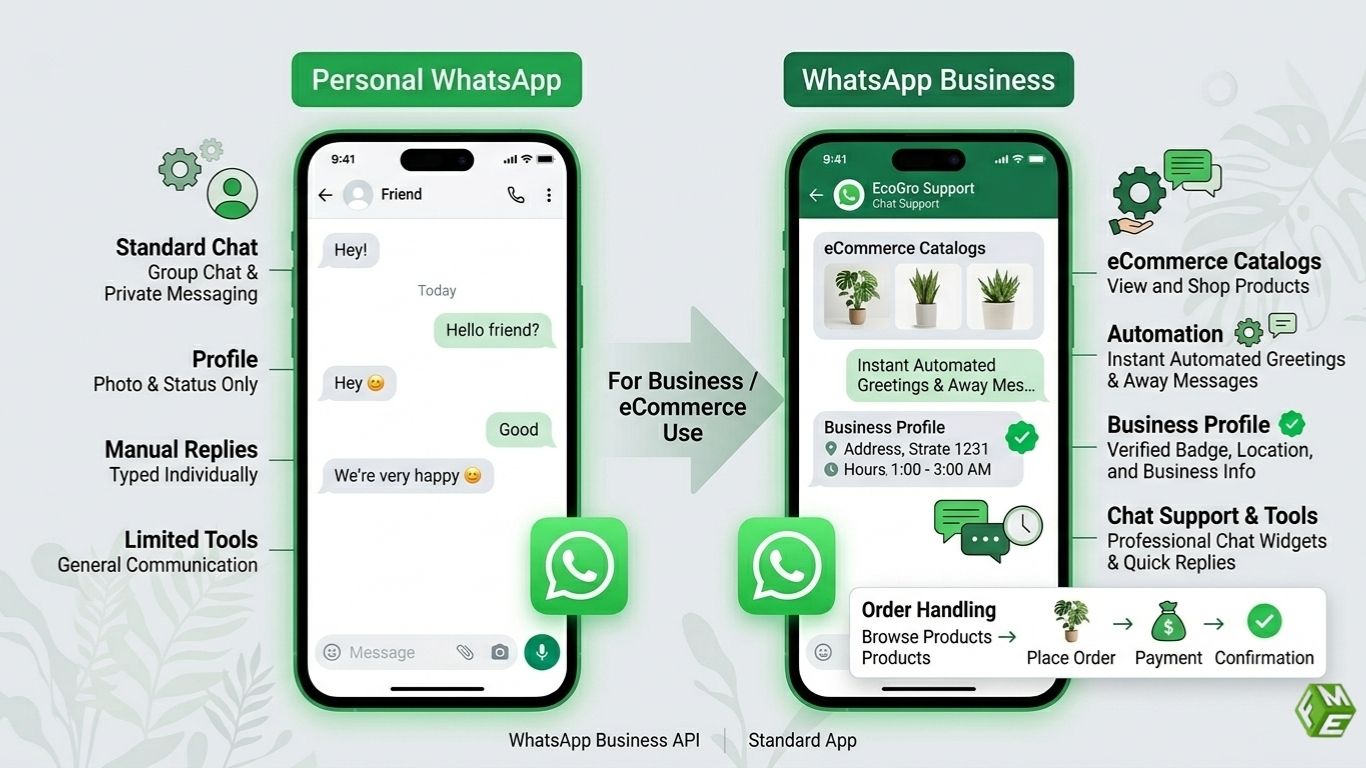
To effectively use a WhatsApp module in PrestaShop, you need a properly configured WhatsApp account along with basic store setup access. The module enables customer communication, support, and order management directly via WhatsApp, but choosing the right type of WhatsApp account is essential for smooth operation.
There are two main options for setting up the PrestaShop WhatsApp chat:
- Personal WhatsApp: Basic messaging, limited scalability.
- WhatsApp Business: Intended for businesses, developed automation systems, contact management, branding capabilities, etc.
- WhatsApp for Business: Hotline and Business WhatsApp systems, instant messaging via WhatsApp modules, developed with no coding or other systems.
For professional use, WhatsApp Business is highly recommended as it supports branding, structured communication, and improved customer handling. It allows store owners to manage inquiries, confirm orders, and provide support more efficiently.
Most PrestaShop WhatsApp modules are built to work seamlessly with WhatsApp Business and require no coding or complex integrations. Once set up, merchants can handle everything from product inquiries to order confirmations within a single chat interface.
To ensure optimal performance, make sure your WhatsApp number is active, properly formatted with a country code, and accessible to your support or sales team.
WhatsApp Business: Business profile, quick replies, automation features.
You will also need admin permissions to your PrestaShop back office to install and set up the module. Without the right permissions, you will not be able to upload the module or adjust any of the settings.
Having these things prepared will make the process as smooth as possible, with as few issues as possible.
PrestaShop WhatsApp Module Installation
Download the Module
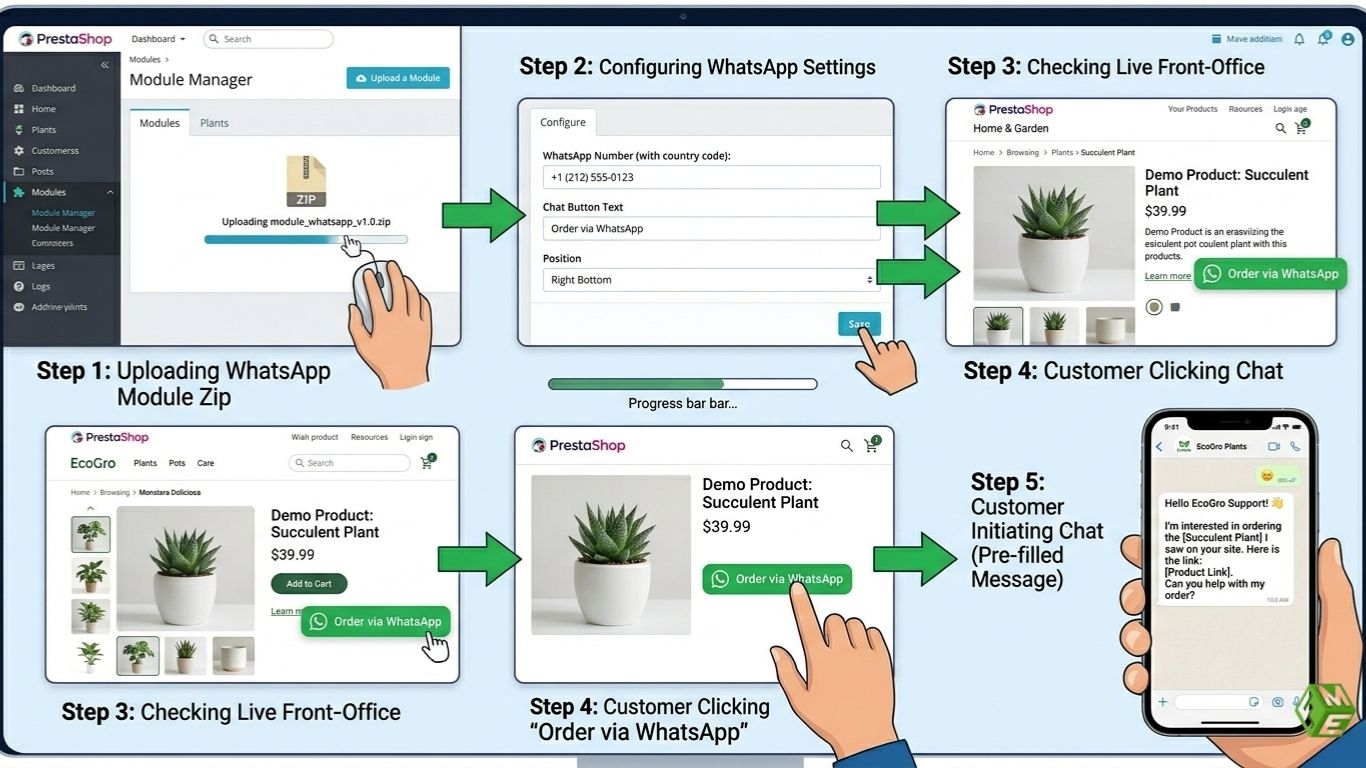
The first step will be to download the WhatsApp order and chat module. You should choose a trusted marketplace, such as FME Modules. After you buy the module, you will receive a .zip file that will have the installation files and other files that you will need.
Do not extract the .zip file, as it will be required as a PrestaShop upload.
Upload and install in PrestaShop Admin
Log in to your PrestaShop Admin panel and go to:
Modules → Module Manager → Upload a Module
Upload the .zip file and then click install. After it has been installed, you should receive a confirmation message, and the module will then be in your list of modules.
Some of the issues you might run into are:
- The module can not be installed: To resolve this, increase the server upload limit.
- Installation failed: To fix this, ensure compatibility with your PrestaShop.
- Module not installed: To resolve this, clear the cache and refresh the module list.
After the module has been installed, you can then adjust your settings.
Configuring Settings of WhatsApp Chat (Initial Configuration)
Adding Business Info & WhatsApp Numbe
For cross-device compatibility, use your WhatsApp number in international format.
You can have
- One number for all inquiries.
- Different numbers for different departments (sales, support, orders).
For example, one store can have sales inquiries directed to one number and support requests directed to another, for more efficient responses.
Create A Default Chat Message
The use of pre-written messages is a time saver and increases their accuracy. These messages are default text messages that display automatically when a user clicks on the WhatsApp button.
For example: “Hi, I’m interested in the Classic Leather Tote. Please share details.”
More sophisticated configurations can include dynamic information such as the product name, quantity, total price, etc., to help the user and increase the likelihood of conversions.
Set the Style and Position of WhatsApp Button
Engagement and visibility are both impacted by the position of the button. You have different options:
- Consider a Floating Button. It will be shown on all pages (high engagement).
- Consider a Product Page Button. It will be shown on all pages (high engagement).
- Consider a Header/Footer Placement. It is a subtle but consistent option.
Make sure the button works on both Mobile and Desktop. Users should be able to easily click the button on Mobile, and it should be able to open WhatsApp Web easily on Desktop.
Configure the WhatsApp Order Button (On Product & Cart Pages)
An “Order via WhatsApp” button can be added next to the “Add to Cart” button or can replace the “Add to Cart” button. This gives your customers the ability to place an order with just a click.
When the button is clicked, a message is created containing the following information.
- Product Name.
- Product Price.
- Product Selected Options (size, color).
This is a great feature for products that are custom-made or require a lot of thought to purchase.
Activate WhatsApp Orders from the Cart Page
With this feature, customers can WhatsApp the summary of their entire shopping cart.
For example, a customer can send the following message.
Hi, I’d like to order 2 T-shirts (Size M) and 1 pair of sneakers. Total: $120.
This is great for markets where customers prefer cash on delivery and where customers are used to order confirmations via chat instead of order forms.
Change the Text on the WhatsApp Order Button
The button text is also an important factor in driving conversions. Rather than using standard text, go with something more active, like:
- Place an order via WhatsApp.
- Purchase on WhatsApp.
- Place a Quick Order.
You can also change the text to be specific to a language or region to better connect with your audience.
Integrating WhatsApp Chat to the Order Workflow
There are two types of integrations:
- Chat-Only Integration: Customers use WhatsApp only to talk to agents about questions.
- Order-Enabled Integration: Customers can use WhatsApp to place and confirm orders.
However, in most cases, the chat turns into an order. For instance, a customer might ask about availability and confirm the purchase in the same chat.
In this way, we create a hybrid checkout experience, where we integrate communication and transaction.
Test WhatsApp Chat & Order Button (Pre-Launch)
Prior to going live, make sure to test your entire integration to confirm everything works.
- Always test on mobile and desktop.
- Test if WhatsApp opens.
- Test the content of the default prefilled WhatsApp message.
- Test if the cart and product details are integrated.
- Confirm that your admins receive messages.
If you add a product to your cart and click the WhatsApp button, all details are supposed to be sent to WhatsApp.
Testing integrations enables you to receive complete orders and for your customers to have a seamless experience.
Common Set-Up Errors and Their Solutions
Here are some common issues and ways to fix them:
- Wrong Format for WhatsApp Number: Remember to always add the country code.
- Button Doesn’t Appear on Mobile: Check your theme and module display settings.
- WhatsApp Not opening on Desktop: Make sure you have linked WhatsApp Web.
Reliably Configure Your WhatsApp Buttons for Maximum Conversion
For the purpose of getting the most out of the integration:
- Position buttons where they are most likely to be seen, for instance, on product pages, and consider using floating action buttons.
- Use CTAs that will prompt action, such as “Order With Us on WhatsApp”.
- During peak time, respond as quickly as possible.
- Use together with abandoned cart messages.
For Example:
“Hi John, you still have items in your cart. For fast delivery, order now via WhatsApp!”
These methods will improve the conversion rate from your store.