


Inaccurate stock levels can create problems that go far beyond inventory management. Your PrestaShop store might accept orders for unavailable products, miss sales opportunities, or disappoint customers who expect items to be ready for delivery.
Keeping your online inventory aligned with actual stock is essential for smooth operations and customer trust. Let’s explore why stock discrepancies happen and how to prevent them.
The Order Lifecycle: Where 'Stuck' Actually Happens
Most PrestaShop order problems trace to one specific handover in the checkout-to-delivery chain.
PrestaShop orders get stuck between payment and shipping when the payment module fails to validate the order, when the order status workflow is misconfigured so no payment accepted state triggers, or when the cron tasks that update statuses never run. Fixing the module's return hook, the order state mapping, or the cron usually releases the queue. Know which of those three broke first, because each fails in a different place and leaves a different fingerprint in your back office.
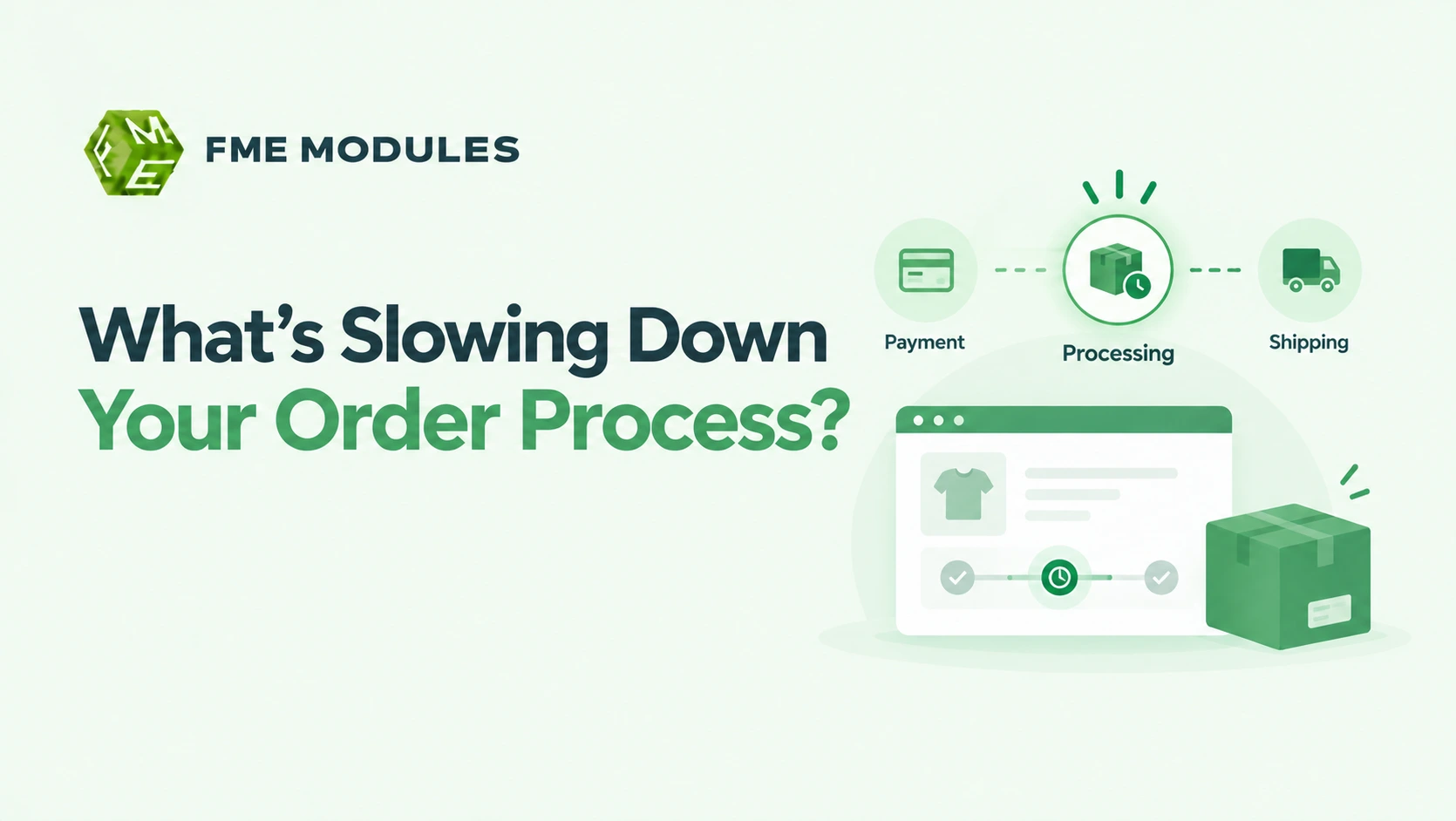
A normal order is three handshakes in sequence. The customer confirms checkout and PrestaShop creates the order with the Awaiting payment state, then hands control to the payment module. The customer pays, and the module calls back to validate the order. PrestaShop moves the order to Payment accepted (or your equivalent), and status automation takes over so the warehouse or shipping step can begin. When one handshake drops, the order stops where it fell.
The symptoms tell you which link broke:
- Stuck at Awaiting payment, but the money left the customer's account points to a payment return or validation failure (the callback never reached PrestaShop, or the module rejected it).
- Payment accepted, but nothing moves afterwards points to status automation: no rule fires to push the order toward Preparing or Shipped.
- Order created but never appears in the list at all often means validation never completed, so PrestaShop treats it as an invalid or abandoned cart rather than a real order.
Every fix later in this guide aims at one of those three joints.
Why Does A PrestaShop Order Stay in 'Awaiting Payment' After Checkout?
This is the most common shape of PrestaShop orders stuck at the start of the lifecycle. The customer paid, the money left their account, but the order sits in Awaiting payment because PrestaShop never received proof that payment succeeded. Until that confirmation arrives, order validation never runs, so no order confirmation email goes out, and stock may not be reserved properly.
The gap is a handshake: the payment module has to report back to your store, and if that report fails, PrestaShop has no reason to trust the order.
The Return Hook or Webhook Never Fires
Most hosted payment modules confirm payment in one of two ways. The customer's browser is redirected back through a return hook (often a URL containing validation in the path). Or the provider pings your site server-to-server through a webhook or IPN, which is more reliable because it does not depend on the customer staying on the page.
Either route can break silently. A firewall, a maintenance IP rule, maintenance mode, or an expired SSL certificate can block the incoming call. The payment went through; the message never landed.
Concrete Examples Across Three Modules
- Stripe: the payment module relies on webhook events to confirm the charge. If the webhook endpoint is wrong or the signing secret is misconfigured, Stripe reports success on its side while PrestaShop stays at Awaiting payment.
- PayPal: classic IPN and the newer webhook setup both need the shop reachable from outside. IPN callbacks fail quietly when the URL is misconfigured or blocked.
- Bank wire: there is no webhook at all. The order stays Awaiting payment by design until you confirm receipt manually, so a missing status change here is expected, not a bug.
To identify this cause, drop the order's transaction reference into the provider's dashboard (Stripe or PayPal) and confirm whether the payment actually captured. If the provider says paid and PrestaShop says Awaiting payment, the handshake broke. Check the module's webhook or IPN logs, confirm your store URL and SSL are correct in the module settings, and re-send a test notification from the provider. If the payment provider shows a successful charge while PrestaShop shows Awaiting payment, the failure is in the callback, not the checkout.
Payment Module vs Order State Mapping: The Mismatch That Freezes the Queue
The second handshake is the quiet one. Every payment module has to tell PrestaShop which order state counts as a successful payment. If that configuration points somewhere unexpected, PrestaShop keeps the order out of the processing queue even though the money arrived.
In PrestaShop's back office, orders move through states such as Awaiting payment, Payment accepted and Processing in progress. Modules often let you choose which to apply on a valid transaction. A module set to apply Awaiting payment on success, or pointed at a state you deleted during a cleanup, leaves paid orders sitting in the same queue as abandoned ones. Shipping never receives the trigger.
A typical case: a store owner tidies up the Orders > Statuses list, removes a custom "Paid, awaiting fulfilment" state, and the module's saved reference becomes invalid. New orders keep validating, the confirmation email sends, but the back office filter for Processing in progress stays empty. Store owners usually start editing payment settings here, but confirm the mapping first.
- Open the payment module's configuration and note which order state is marked valid.
- Check Orders > Statuses to confirm that state still exists and is not disabled.
- Compare the status shown on the order itself with the status the module claims to set.
- Look for the "valid" flag on the state: PrestaShop uses it to decide whether an order counts as paid.
The fix is usually a single dropdown change: set the module to apply Payment accepted (or a state you have marked valid) on a successful transaction. If your store relies on per-payment-method states or automated transitions, FME Modules builds PrestaShop modules for order management workflows, which can hold these mappings steady when a module's built-in settings are too limited.
If a paid order never reaches Processing in progress, check the module's valid state before touching anything else, because that single setting freezes the whole queue.
Cron Tasks and Webhooks: The Silent Failure Behind Stuck Orders
Some stuck orders never touch a payment module at all. The customer pays, the money lands, and the shop never hears about it because the signal that should have arrived quietly stopped. That signal travels two ways in PrestaShop: a scheduled task (cron) that updates order states in the background, and, on hosted gateways, a webhook or IPN (Instant Payment Notification) that pushes the payment result to your store.
When either breaks, orders pile up in "Awaiting payment" or stay at "Payment accepted" without moving to "Processing". Nothing crashes, so nobody notices until a customer emails asking where their parcel is.
Where the Silent Failures Hide
- Cron never configured: the status-update task only runs if you set it up on your server or hosting panel. Many stores never do, so background state changes simply do not happen.
- Cron failing silently: a PHP error, timeout, or bad URL makes the task return nothing. No alert fires, so it looks like it ran.
- Webhook URL wrong: the gateway posts to an old or mistyped URL after a domain change or migration, and the notification bounces.
- Webhook subscription expired: some gateway integrations require you to re-confirm or refresh the subscription; when it lapses, notifications stop.
- Firewall or bot protection blocking the gateway: a security rule treats the incoming callback as suspicious traffic and blocks it.
To find which one is failing, check the payment module's own log first (most gateway modules keep a transaction or callback log in their configuration screen), then the PrestaShop Advanced Parameters > Logs page, then your server's access and error logs for the timestamp of the test payment. A missing entry where the gateway claims it sent a notification usually confirms a blocked or misdirected callback.
The most dangerous stuck orders are the ones where no error was ever recorded, because silence is the failure mode.
Multistore, Currency and Permissions: Edge Cases That Block Validation
Some stuck orders stall because PrestaShop cannot reconcile the shop context, the currency, or the employee rights attached to the order. These cases are rarer, which is why they get missed on a first pass through the config.
Multistore is the biggest culprit. A payment module enabled on your main shop but not on the second shop in the group lets customers reach checkout and then leaves the order unvalidated on that storefront. Check the module's shop association under Modules > Module Manager using the shop selector at the top of the page.
Currency mismatches break validation too. If a module restricts to a currency the active shop no longer offers, or an order was placed in a currency the module does not accept, the validation call is rejected silently. Confirm the currency is still assigned to the shop under International > Localisation > Currencies.
Employee permissions are subtler. A colleague without the relevant order rights can see a stuck order but not the manual status change that would release it. If the buttons look inactive, check the profile under Advanced Parameters > Team > Permissions before assuming a bug.
Finally, sandbox versus live credentials. Modules that offer a test mode, such as many PayPal, Stripe and Mollie integrations, will happily accept a live order while pointed at sandbox keys, then fail validation. If validation fails only on real orders, suspect the credential mode before the code. A well-built PrestaShop module from FME Modules keeps shop and currency context explicit rather than inferring it at runtime.
A Step-by-Step Diagnostic Checklist to Release Stuck Orders
Once you suspect the payment module, the order validation step, or the status automation has dropped the handshake, work through this checklist in order. It moves from observation to confirmation to a controlled test, so you leave with evidence rather than guesses, and each step narrows down which component actually broke before you change any setting.
- Read the Logs First. Open your PrestaShop Advanced Parameters > Logs page and check for errors with timestamps that line up with a stuck order. Cross-reference with your hosting server error log (the PHP error log). An absence of errors is itself a clue: it points toward a status rule that never fired rather than a crash.
- Confirm the Payment Module's Return URL. In the module configuration, verify the callback or confirmation URL matches your store's live domain exactly, including https and any subfolder. A store moved from staging to live, or a domain that gained an SSL certificate, frequently leaves a stale return URL behind.
- Verify the Order State Mapping. Check which order state your payment module is set to apply on a successful payment. Then confirm that state exists in Shop Parameters > Order Settings > Statuses and is flagged as a valid (paid) state. A mismatch here is the most common reason an order never leaves "Awaiting payment".
- Run the Cron Task Manually. If your module relies on a scheduled cron or webhook to validate orders, trigger it by hand. PrestaShop scheduled tasks can often be forced through the module's own panel or the cron URL. If orders jump forward, the automation was never running on schedule.
- Place A Sandbox Test Order. Switch your payment module to test or sandbox mode and complete a small order end to end. This isolates whether the failure is live-only (credentials, live return URL) or affects every order regardless of mode.
A single diagnostic run like this usually pinpoints the culprit within minutes. Note what you changed at each step so you can reverse it cleanly. For modules that manage order state transitions for you, the relevant configuration panel is documented in the module's own listing, such as the PrestaShop plugins library from FME Modules, where the order automation modules explain how they map states.
Log first, mapping second, test last: the order in which you check tells you which component failed.
How Do You Prevent Orders Getting Stuck in Future?
Every fix so far has been reactive. The stronger move is to make the handshake between payment module, order validation and status automation something you can watch, so a silent failure shows up as an alert rather than a customer complaint three days later.
Start with uptime monitoring pointed at your payment provider's return URL and your own validation endpoint. A synthetic check that requests the URL every few minutes flags when a provider changes an endpoint or your server stops answering. Uptime services such as UptimeRobot or Better Stack can watch these URLs and email you the moment a response changes.
Cron monitoring is the next layer. Because PrestaShop relies on scheduled tasks to process states, an unmonitored cron that quietly stopped running can leave validations hanging. Healthchecks.io and similar services let you ping a URL from inside each cron job and alert you when a ping is missed, so you learn about a dead task before customers do.
After every PrestaShop upgrade, run a compatibility pass on each installed payment module against the new core version. Note the order states and validation hooks each one uses, and confirm they still match. Before applying any module update, test it on a staging copy of the store, place a real test order, and verify it reaches the correct state.
Prevention is just observation plus rehearsal: monitor the endpoints, watch the crons, and test every update on staging before it touches live orders.
Why PrestaShop Orders Get Stuck: The Three-Part Handshake Explained
This is one of the most diagnosable faults in PrestaShop, and many cases are fixed without touching a line of configuration. The sections above covered the symptoms and the fastest fixes; what follows are the specific failures behind each handshake stage, so you can identify which component broke before you start changing settings.
Symptoms: Confirming You Have a Stuck Order Problem
Before you dig into modules or server logs, check whether the behaviour you are seeing matches the classic stuck-order pattern. These are the telltale signs store owners report most often.
- Orders stay frozen in "Awaiting payment" long after the payment provider has confirmed the transaction.
- Customers email to say they paid, but no order appears in the Orders tab, which is a missing order rather than a frozen one, and points to a different part of the chain.
- An order appears, but the "Payment accepted" status never fires automatically.
- Paid orders never reach the "Preparing" or shipping queue, so the warehouse never sees them.
- Order confirmation emails go out, yet the back-office state never moves forward.
- Stock quantity has decreased, proving the order was recorded, but the status is still stuck.
- The same customer's retry creates a duplicate order or a duplicate charge.
- Only certain payment methods are affected (for example, card payments fail to update while bank transfers update fine).
- Orders freeze only after a plugin update or a migration to a new server.
If most of these describe your store, the handshake chain is the likely culprit. If only one or two match, the problem may be narrower, such as a single payment module misbehaving.
What Causes PrestaShop Orders to Get Stuck?
The table below groups the most common causes by which part of the handshake they break. Use the Difficulty column to plan your troubleshooting order, starting with the easiest checks.
| Cause | Description | Difficulty |
|---|---|---|
| Payment Module Never Calls Back | The provider (for example, Stripe or PayPal) approves the charge, but the notification or return call to PrestaShop fails, so validation never runs. | Medium |
| Return URL Misconfigured | The URL in the module settings does not match the shop's actual domain or SSL setup, so the customer is sent to a page that cannot record the payment. | Easy |
| Order State Deleted or Edited | A custom order state or a built-in state such as "Payment accepted" was removed, leaving validation with nowhere to write the status. | Easy |
| Cron or Status Automation Not Running | Scheduled tasks that move orders between states never execute, so manually pending orders never progress automatically. | Medium |
| Multistore Mismatch | The payment module is enabled on one shop context but not the shop the order was placed on. | Medium |
| Module or Theme Conflict | Another module or an override intercepts the validation step, so the payment callback is swallowed before it reaches the order. | Hard |
| Server or SSL Failure | A redirect loop, expired certificate or firewall block prevents the callback from reaching your store. | Hard |
| PHP Error During Validation | An exception thrown during order creation stops the status change mid-way, leaving a half-written order. | Hard |
Quick Fixes to Try First
Run these in order. Each resolves a large share of stuck-order cases, and doing them first saves you from deep debugging you may not need.
- Open the stuck order in the back office and check whether the payment amount actually cleared with your provider. If the money is confirmed, you can safely move the order forward manually.
- Use the order's status dropdown in the Orders tab to set it to "Payment accepted", then "Processing in progress" or the equivalent state your shop uses. This unblocks the warehouse immediately while you diagnose.
- Open the payment module's settings page and confirm the return URL and webhook or callback address match your live domain, including the correct https:// prefix.
- Check that the "Payment accepted" order state still exists under Shop Parameters, Order Settings, Statuses. If it was deleted, restore it.
- Confirm the payment module is enabled for the correct shop context under Multistore if you run more than one storefront.
- Clear the PrestaShop cache under Advanced Parameters, Performance, then retry a test order with a small amount.
- Disable any recently installed module that touches checkout or payments, then place another test order to see if the freeze stops.
If none of these fix the pattern, you have confirmed the problem is systemic rather than a one-off, and the sections below will help you isolate the exact component.
Diagnosing The Payment Module Handshake
The payment module is the first link in the chain, responsible for telling PrestaShop that money has arrived. When the module itself is healthy but the callback never lands, the order will sit in the state the module set at creation, waiting for a confirmation that never comes.
Module and Theme Conflicts: When Another Extension Swallows the Callback
If the payment provider reports success, the module settings look correct, and the state mapping is valid, the next suspect is a conflict. Another extension or a theme override can intercept the validation request and stop it before it reaches the order.
This is common after installing a checkout customisation module, a one-page checkout replacement, or a discount and loyalty extension that hooks into the order confirmation step. If two modules both try to handle the validation callback, the second can return a response that short-circuits the first. The order is created but never validated.
To identify it, note every module that hooks into checkout, order confirmation, or payment. Disable them one at a time on staging, placing a test order after each change, and watch whether the state finally advances. A theme with custom order-confirmation templates can also break the flow if it overrides the default controller.
- Disable recently installed checkout, discount or loyalty modules one at a time and retest.
- Switch to the default PrestaShop theme on staging to rule out a theme override.
- Check Advanced Parameters > Logs after each test order for the same error timestamp.
- Confirm no duplicate payment module for the same provider is installed and enabled.
If the callback works with a module disabled and breaks again when it is on, you have found the conflict without reading a single line of code.
Server Configuration and SSL: When the Callback Never Reaches Your Store
Even a perfectly configured module cannot validate an order if your server refuses the incoming request. The provider sends its confirmation, your server blocks or drops it, and PrestaShop never knows the payment happened.
The usual suspects are an expired or misconfigured SSL certificate, a firewall or WAF rule that treats the callback as bot traffic, an IP allowlist that excludes the provider's servers, or maintenance mode still active. A store that recently moved hosting can also leave the old DNS or a stale redirect in place.
To identify it, watch your server's access log while you trigger a test payment from the provider. If the request never appears, the block is upstream of PHP. If it appears with an error code such as 403 or 500, the cause is the rule or the script itself.
- Confirm the SSL certificate is valid and has not expired by checking Advanced Parameters > Configuration Information.
- Temporarily review the firewall and WAF rules for anything blocking the gateway's IP ranges or callback path.
- Make sure maintenance mode is off for the storefront and that maintenance IP rules do not exclude the provider.
- Re-send a test notification from the provider dashboard and confirm it appears in your access log.
If the provider's request never shows up in your access log, the problem is at the server edge, not in PrestaShop.
PHP Version and Server Limits: The Half-Written Order
Sometimes the order is created, and the status change begins, but an exception thrown midway leaves it half-finished. The customer sees a confirmation, the back office shows an order that never moves, and the store logs contain a fatal error or timeout.
This often appears after a PHP upgrade or a hosting migration. A payment module written for an older PHP version can throw a deprecation or type error that stops validation. A memory limit or max execution time set too low on a busy checkout can also cut the process short.
- A fatal error in the log at the exact time of the stuck order points to an exception during validation.
- Orders only failing during busy periods suggest a timeout or memory limit.
- Failures starting right after a PHP version change point to incompatibility with the module.
Compare your PHP version under Advanced Parameters > Configuration Information with the version the payment module states it supports. Test the module against the newer running version on staging first, and raise the memory and execution limits if the logs show the process running out of room.
A half-written order is a crash, not a configuration problem: read the error log before you touch the settings.
Manual Status Changes Gone Wrong: The Fix That Creates a New Problem
Moving a stuck order forward by hand is the right first aid, but it has a trap. If you skip straight to a shipped or delivered state, PrestaShop may never trigger the intermediate steps: the confirmation email, the stock reservation adjustment, or the payment recorded flag.
The result is an order that looks resolved in the list but still behaves oddly downstream. Invoices may be missing, stock counts may not reconcile, or a later automation may reject the order because its state sequence is out of order.
- Always step through Payment accepted before Processing in progress and then Shipped rather than jumping to the end.
- Check whether the state you choose is flagged as paid, so reporting counts the order as revenue.
- Attach the provider's transaction reference to the order so the history shows why the change was made.
Manual fixes are safe only when you walk the state machine one step at a time, because each step fires the emails and stock updates the next one expects.
Debug Mode and Error Logs: Finding the Real Failure
When the easy checks come up empty, turn on evidence gathering. PrestaShop ships a debug mode that surfaces errors instead of hiding them, and the built-in log page records what the store tried to do.
Enable debug mode under Advanced Parameters > Performance on a staging copy, never on live during trading hours, because it exposes error detail to visitors. Then reproduce the problem with a small test order and read what appears.
- Switch debug mode on in a staging copy of the store.
- Cross-check the PrestaShop log page, the PHP error log on the server, and the payment module's own transaction log.
- Reproduce with a test order and note the timestamp, then match entries across all three logs.
- Turn debug mode off again once you have captured the error.
The browser console is worth a look too. If the customer was redirected back to a broken return URL, the console and network tab show the failed request that never reached validation.
Debug mode turns a silent failure into a visible one, which is exactly what you need when the state will not move.
Conclusion
Stuck PrestaShop orders almost never need a rewrite of the store. They need you to find which of the three handshakes dropped: the payment callback, the state mapping, or the status automation. Work from the quick fixes outward, confirm each link with logs and a test order, and only then touch configuration.
Once the queue is moving again, make the handshake observable so the next silent failure surfaces as an alert, not an angry email. If your built-in module settings cannot hold the state mappings and automation you need, the order management modules from FME Modules are built to keep payment, validation and status transitions in step.
- →The most likely causes are a payment callback that never fires, an order state mapping pointed at the wrong or deleted state, and a cron task that is not running.
- →The quickest fixes are confirming the provider actually captured the payment, checking the module's return URL and valid state, and moving the order forward by hand one step at a time.
- →Read the logs before you change settings, and place a sandbox test order to confirm the fix before trusting it on live orders.
- →Prevention comes down to monitoring the callback endpoints, watching the crons, and testing every module update on staging.