


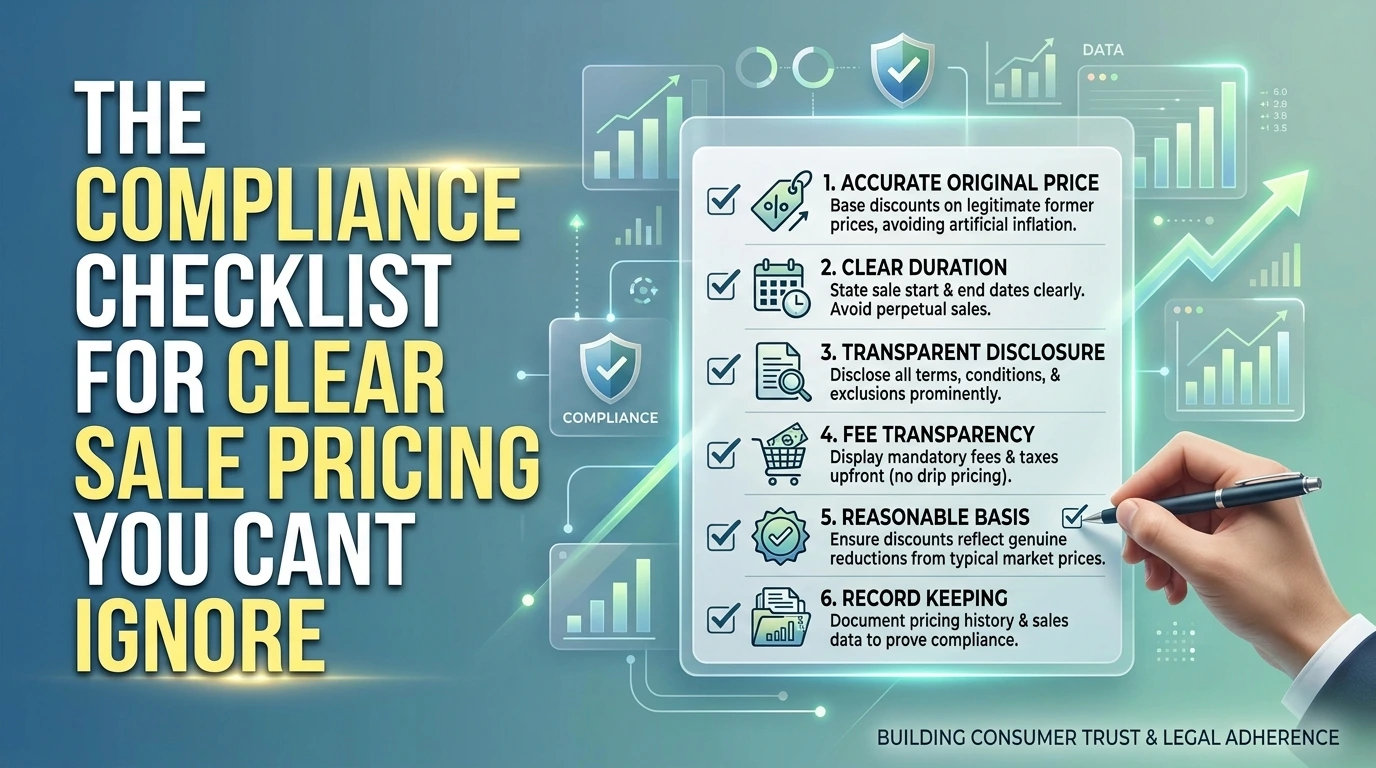
In an increasingly competitive retail and e-commerce landscape, aggressive pricing strategies and promotional sales are among your most effective tools to drive conversions. However, setting discount prices isn't just a marketing decision—it’s a legal one.
Regulatory bodies around the globe (such as the FTC in the US and the CMA in the UK) have sharpened their focus on misleading discount claims, "drip pricing," and artificial reference prices. Failing to comply can lead to costly fines, mandatory refunds, and severe brand reputational damage.
To help protect your business and build long-term trust with your audience, here is the essential compliance checklist for clear sale pricing you can't ignore.
Is your 'was' price actually a real price?
Sale pricing compliance means every "was/now" price, discount claim and urgency cue must be honest, substantiated and easy for shoppers to understand. In the UK, the CMA's Pricing Practices Guide requires reference prices to be genuine and held for a meaningful period, not just briefly before the sale. For PrestaShop stores, this comes down to consistent price history, no fake countdowns, and clear disclosure of conditions.
Open the product page, then open your own product edit screen in the PrestaShop back office. If the "was" figure never existed as a normal selling price outside the promotional window, it is not a reference price, it is a decorative number.
If you cannot point to a date on which a real customer could have bought at that price, strike the claim.
Ask three questions of every discounted product in the sale:
- Was the earlier price actually charged, and for how long, before the reduction?
- Does the PrestaShop specific price record show a start and end date that matches what you advertise?
- Would a shopper reading only the product page understand the basis of the comparison?
The 7-point PrestaShop sale pricing compliance checklist
Print this, open your PrestaShop back office in a second tab, and work down it. Every item is an instruction you can either tick or fix, so the audit produces a to-do list rather than a vague sense of unease.
- Prove your reference price existed. Export the product's price history from your order and catalogue records and confirm the "was" figure was the genuine selling price before the reduction. Keep that evidence in a dated folder.
- Show the saving, not just the crossed-out number. Use PrestaShop's specific price and discount fields so the customer sees a clear percentage or amount off, labelled honestly.
- Strip out fake urgency. Delete countdown timers, "only 2 left" badges and "ends tonight" banners unless they reflect a real, enforceable deadline or real stock.
- Check unit prices. For products sold by weight, volume or length, confirm the unit price displayed alongside the sale price is correct.
- Reveal the total before checkout. Shipping, taxes and any mandatory fees must be visible from the product page, not sprung at the final step.
- Make the sale terms findable. Link your promotion conditions, exclusions and end date in the product description and the cart, where shoppers actually look.
- Diary the restore date. Set a calendar reminder to return prices, badges and CMS banners to their normal state the day the promotion ends.
Items 1, 3 and 7 catch most accidental problems. Crossed-out prices with no history behind them, banners that outlive the promotion, and countdown clocks that reset on refresh are the three patterns that most often turn an honest retailer into a misleading one.
If you run seasonal campaigns behind a password or trade-only area, pair this audit with the PrestaShop Private Shop Lite module so restricted pricing never leaks to the wrong audience.
How do honest stores accidentally trick shoppers?
Most sale pricing compliance failures are not deliberate scams. They are the side effects of everyday store management: a product manager updates a price in a hurry, a module holds onto an old figure, and a PrestaShop catalogue ends up telling two different stories at once. Four patterns recur.
- Stale reference prices. You ran a genuine reduction earlier in the year at a lower "was" figure. Months later you rebuild the sale and reapply the old figure as the reference price. The comparison no longer reflects a price anyone actually paid recently, which is exactly the kind of reference pricing the CMA has scrutinised in furniture and carpet retail investigations.
- Drip pricing at checkout. The product page shows a headline price, then a mandatory handling fee, then shipping, then a payment surcharge appear in the cart. Individually each charge is legitimate. Together they mean the price the shopper compared against the "was" figure never existed.
- False scarcity from reusable countdowns. A "sale ends soon" timer built as a display block rather than tied to the actual discount period resets on refresh or on the next campaign. Shoppers notice, and misleading urgency claims are a live enforcement concern for UK regulators.
- Vague "up to" discounts. A banner promising a big "up to" discount where a handful of items hit the top figure and the rest sit far lower is technically accurate and practically misleading. The same applies to "was" prices rounded upward from a long-forgotten original price.
The gaps between what your PrestaShop catalogue says and what the shopper actually pays are where trust quietly leaks out of the store.
To keep pre-sale pricing experiments away from the public storefront while you test them, a private shop module lets you stage changes before revealing them. Otherwise, test on a staging copy of the catalogue where a broken reference price cannot reach a customer.
Clear sale pricing vs misleading discounts: a side-by-side
The same reduction can be completely defensible or a genuine breach, and the deciding factor is rarely the maths. It is how the discount is framed on the product page, in the category listing, and at checkout.
| Scenario | Compliant presentation | Misleading presentation |
|---|---|---|
| Was/now price | Initial price previously charged for a continuous period, shown alongside the discounted price | An inflated initial price that was never actually charged to shoppers |
| Savings claim | Reduction reflects the real gap between the two prices | Margin so thin that the reduced price was the ordinary selling price all along |
| Urgency | Countdown reflects a genuine, scheduled sale end | Timer that resets on every page load or per visitor |
| Delivery charges | Shipping and handling shown within the advertised price or stated up front | Low headline price, unavoidable fees revealed only at checkout |
The non-compliant column nearly always relies on something the shopper cannot verify at the moment of purchase. Reference prices that were never genuinely charged are the classic case, which is why regulators have examined retailers for exactly this practice in misleading reference pricing investigations.
If a shopper can only discover the truth after paying, that is where the compliance problem sits, regardless of intent. Run each live sale page through both columns before launch and fix anything that lands on the right.
Where are the compliance risks hiding in your PrestaShop theme?
Most sale pricing compliance failures in PrestaShop come from five native features working quietly against each other: Specific PricesCatalog Price RulesCart Rulescountdown modules, and the price display settings under Shop Parameters > Product Settings. Each was configured on a different day, by a different person, for a different promotion.
- Specific Prices left active after the sale ends. These sit on the individual product, ticked with a date range. If the "to" date is empty, the reduced price never expires and becomes your new permanent price, which destroys the reference point for your next "was" claim.
- Catalog Price Rules stacking with Specific Prices. A rule applied to a category will also reduce products that already carry a Specific Price, so the displayed discount is deeper than any single promotion you advertised.
- Cart Rules that only appear at checkout. A voucher applied after the customer has committed to a basket is drip pricing in miniature. If delivery or a mandatory fee only surfaces on the final step, that is the pattern regulators flag.
- Countdown modules with hardcoded timers. Many third-party modules count down to a fixed timestamp in the template. When the deadline passes and the price does not change, the urgency claim becomes false.
- Tax display settings that differ between the listing and the basket. Products listed excluding tax and shown including tax at checkout reads as a price increase, even when your arithmetic is correct.
What does the CMA actually require for sale pricing?
The UK's Competition and Markets Authority does not ban sales, countdown timers or percentage-off banners. It bans the impression of a better deal than the one you are really offering. The CMA's Pricing Practices Guide works alongside the Consumer Protection from Unfair Trading Regulations, and the test it applies is simple: would the average shopper be misled into a purchasing decision they would not otherwise have made?
Two ideas carry most of the weight. The reference price is the price your sale price is measured against. The meaningful period is the length of time that reference price genuinely applied before the sale began. The CMA expects a "was/now" comparison to rest on a price you actually charged for a reasonable stretch, not one you created moments before the discount went live.
The guidance is blunt about the common shortcuts:
- Inflating a "was" price purely to make the discount look steeper. The ACCC found reference prices had been artificially inflated by at least 15% to create the illusion of savings.
- Promoting a price as a special offer when it is really your normal price.
- Running "was/now" claims so often that the higher figure was rarely charged.
- Urgency wording that pressures a decision without a factual basis.
CTSI's Guidance for Traders on Pricing Practices sits beside the CMA material and points traders to CMA209 on price transparency for the detail. In your PrestaShop back office, the equivalent discipline is the Specific Price record: its start date, end date and original price are your evidence of a meaningful period. Treat that record, not the banner, as the claim you are making.
When a "was" price has no supporting history, the cleanest fix is not to show it at all. A store operating a private or trade-only catalogue, for instance the PrestaShop Private Shop Lite modulehas an advantage here: prices are hidden from the public, so there is no reference price to substantiate until a customer logs in.
How to make sale pricing clear and compliant step by step
Running the audit as a sequence beats checking things at random. Work through these steps in order, and each one builds the evidence the next one depends on.
- Export your price history. Pull a substantial record of recent product prices, including every previous reduction, from your PrestaShop database or an analytics export. Without this record you cannot prove a reference price was genuine.
- Set your reference period rules in writing. Decide how long a price must have been charged before it can appear as a crossed-out "was" figure, and how long a gap disqualifies it. Apply the same rule to every product category.
- Configure PrestaShop to enforce them. Use the Specific Prices rules under each product's Pricing tab to control start and end dates, and check that your theme does not calculate the discount percentage independently.
- Write banner copy that states facts only. Replace countdown timers and "only today" claims with the actual end date and the real saving. Vague urgency is where most accidental deception starts.
- Brief the people who touch prices. Whoever schedules a campaign needs to know the reference period rule, not just the discount amount.
- Schedule a pre-sale check. Run the same export and comparison a week before launch, so fixes happen before customers see anything.
Step two is the one teams skip, and it causes the most trouble later. Write the rule down once and the remaining steps become mechanical.
Your pre-sale sign-off: 12-point final check
Run this list the day before a sale goes live, not the morning of it. Twelve items, one pass, and you have a signed-off record that your PrestaShop catalogue told the truth about every price. Store the completed sheet with a dated export of your price changes.
- Every "was" price equals a price you genuinely charged for a reasonable period before the sale.
- Each discounted product references a specific Specific Price with a clear start and end date, not a manual overwrite.
- The Tax and Currency settings applied to the reduction match the base price exactly.
- Countdown timers, stock bars and "only 2 left" messages reflect real inventory and a real deadline.
- Delivery charges appear before the customer commits, not at the final step of checkout.
- Every campaign banner carries the sale end date or states while stocks last.
- Group discounts, cart rules and catalogue rules do not stack into a discount deeper than the one you advertised.
- Product page, category page and invoice all display the same final price.
- Multi-currency and multi-language versions show a consistent offer, not a stronger one in one language.
- Someone other than the person who built the sale has clicked through checkout on a phone and a desktop.
- Price restoration is scheduled in advance, so nothing stays discounted by accident after the sale ends.
- The completed sheet, the price export and a note on what you checked are filed together with the campaign dates.
That last pair is the one most stores skip. A campaign that quietly leaves a price reduced long after the advertised end date is the same failure as a fake countdown, just slower. A dated checklist plus your price log answers a regulator's or marketplace's question in minutes instead of weeks.
If part of your team needs to preview the sale before it is public, a module such as PrestaShop Private Shop Lite lets you stage and inspect prices on a locked shop rather than pushing a half-finished campaign live to real customers.
What a Sale Pricing Compliance Audit Actually Achieves
Sale pricing compliance means every price, saving claim, and deadline your PrestaShop store shows is accurate, evidenced, and not capable of misleading a reasonable shopper. Auditing for it before a campaign closes the gap between what you intended to promise and what your theme, modules, and emails actually display.
Most breaches are not deliberate. They come from a was/now spread that drifted over months, a countdown module that resets on reload, or a shipping cost revealed three steps into checkout. Work through this once per campaign, category by category, before the sale goes live. It turns a vague legal worry into a set of tasks your merchandising and dev people can tick off.
The Pre-Sale Compliance Checklist
- List every reference price currently published on your PrestaShop catalogue before you touch anything.
- Confirm each "was" or "RRP" price was genuinely offered for a meaningful, continuous period.
- Record the exact dates each reference price was live and where that evidence is stored.
- Verify the discount percentage on each product page matches the numbers the customer can actually see.
- Check that the sale price in your PrestaShop Combinations is the price shown once options are selected.
- Reconcile the price on the product page, the category listing, the cart, and the order confirmation.
- Confirm the final total, including tax and delivery, is visible before the customer commits.
- Review every urgency element: countdown timers, "only X left" messages, and "ends tonight" banners.
- Check any stock scarcity message against the real PrestaShop stock quantity for that product.
- Confirm the sale end date in your PrestaShop Specific Prices rules matches the date in your marketing.
- Review bundle and multibuy pricing so the per-item saving is stated correctly.
- Check that the previous price shown on an accessory or variant is not inherited from a different product.
- Confirm email, SMS, and paid ad copy uses the same figures as the product page.
- Check the sitemap, cached pages, and Google Shopping feed do not carry stale pre-sale prices.
- Sign off the campaign with a named owner responsible for the figures.
Reference Prices: The Item Most Stores Get Wrong
A reference price is the "was" figure you compare against. Regulators have scrutinised this specific practice hard: the OFT investigated whether 6 furniture and carpet retailers were engaging in the use of misleading reference pricingand Australian research found reference prices had been inflated by at least 15% to manufacture the appearance of a saving.
In PrestaShop terms, the risky pattern is setting a product's regular price high just long enough to justify a steep discount campaign. If the higher figure was never a real selling price for a sustained period, it is not a reference price. It is a number you invented.
Good practice is boring: keep a dated log per product showing when each price was active. If a regulator or a customer asks, you can answer in a minute.
If you cannot show the date a was-price was live, you cannot defend the saving you advertised.
Subtle UI Patterns That Create Accidental Deception
Fake urgency
Countdown timers are the most common offender. A timer that resets on page reload, or that always shows the same round figure no matter when you visit, is not a deadline. It is theatre, and the CMA has flagged misleading urgency as a specific concern for online B2C sellers.
Thin was/now spreads
A price only fractionally lower than its "was" figure is technically a discount and practically a trick, especially if the higher figure was only ever the price for a short time. Shoppers reading the crossed-out figure expect a real gap.
Drip pricing
This is where delivery, handling, or a mandatory fee appears only at the final checkout step. If your PrestaShop carrier configuration adds a cost based on postcode or weight late in the flow, surface an estimate earlier on the product page.
Scarcity claims disconnected from stock
A "hurry, low stock" badge that fires for every product, regardless of the actual figure in your PrestaShop stock settings, trains customers to ignore it. Worse, when a product is genuinely out, the badge looks like a lie. This matters because trust is commercial: research on UK consumer trust found 40% of adults say unfair treatment of customers caused them to lose trust in a brand.
Where PrestaShop Settings Create Risk
PrestaShop gives you several places to put a price, and they can disagree. Before a campaign, walk through these in the back office.
- Specific Prices rules carry their own date range. Set the end date and check no overlapping rule silently wins.
- Combinations generate price impacts on top of the base price. A variant selected on the front office can show a different total than the listing page.
- Catalogue price rules applied after a specific price can compound, producing a discount deeper or shallower than you advertised.
- Tax rules and customer group settings change the displayed figure for logged-in versus guest visitors.
- Multi-store setups can hold different prices per shop, so confirm which shop the campaign applies to.
If you need to keep a staging or pre-launch version of the catalogue hidden from shoppers while you verify prices, a module such as PrestaShop Private Shop Lite Module lets you lock the shop to logged-in or approved visitors while you audit.