


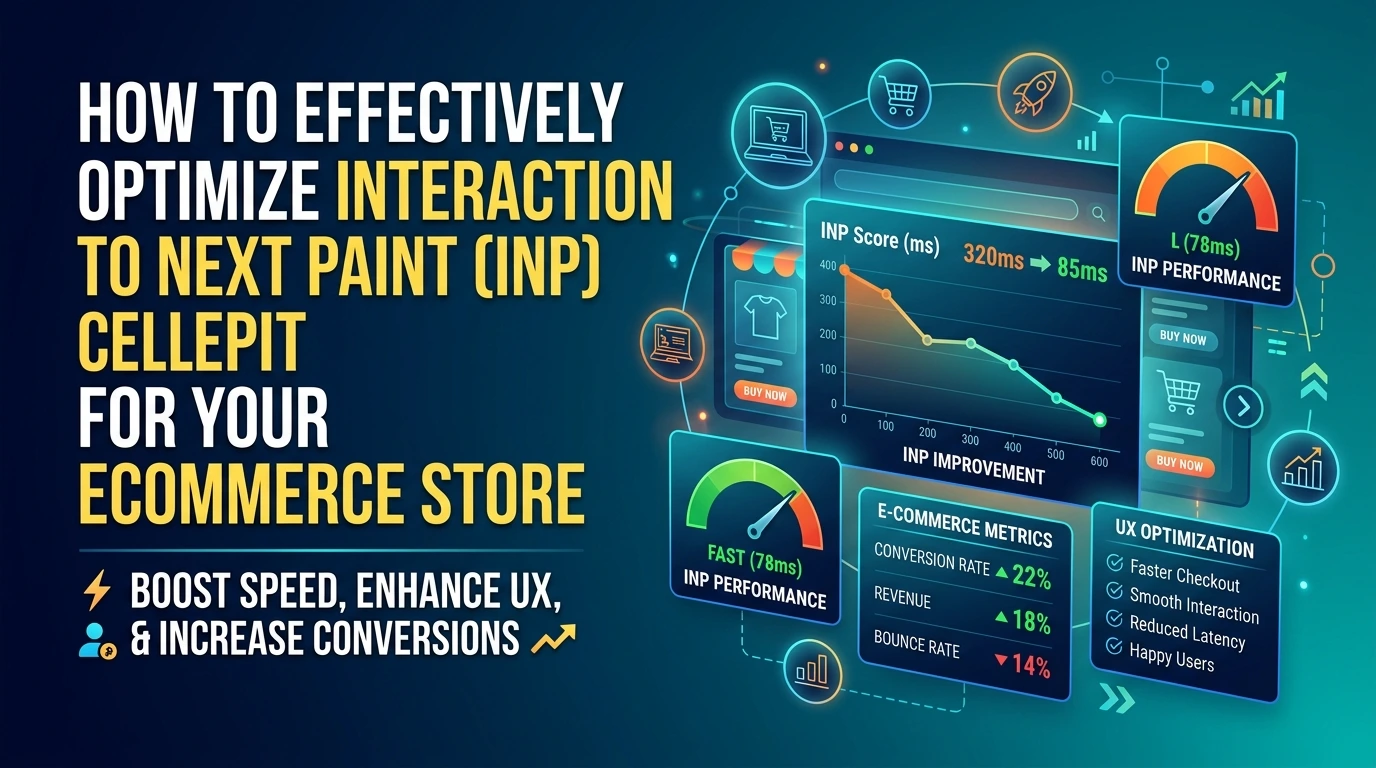
A fast-loading PrestaShop store can still feel frustratingly slow when every click, tap, or interaction takes too long to respond. That’s where Interaction to Next Paint (INP) matters, revealing performance issues that traditional page-load metrics can miss.
In this blog post, we’ll explain what INP means for your PrestaShop store, why product pages often struggle with responsiveness, and the practical ways to improve your score.
Why does your store feel slow when load times are low?
You have probably run Google PageSpeed Insights, seen a green Largest Contentful Paint, and wondered why customers still complain the site feels sluggish. The disconnect is real. Load metrics tell you when the page finished drawing. INP tells you whether the page actually responds when someone clicks, taps, or types. A store can paint fast and still feel dead to the touch.
The fix is not about hosting or image compression, at least not primarily. It is about JavaScript. When a shopper clicks "Add to cart" and the browser is busy executing a long script, the visual feedback stalls. That gap, between the tap and the on-screen response, is exactly what INP captures.
For technical owners, the frustration is understandable. You have optimised everything visible, yet the interaction layer still drags. The good news: PrestaShop gives you direct control over the usual culprits. JavaScript aggregation, deferred loading, and selective module enabling all live inside your back office, and they directly affect how quickly your store reacts to input.
Think of it this way. Your page is a restaurant kitchen. Page load is how quickly the kitchen opens. INP is how quickly a waiter responds when a customer raises their hand. You can have a spotless kitchen that opens on time, but if the staff are all busy chopping vegetables, nobody notices the raised hand. Reducing JavaScript execution is the equivalent of keeping one person free to respond.
Google replaced First Input Delay (FID) with INP as part of Core Web Vitals in March 2024, because FID only measured the initial delay before a response started. INP measures the full duration of every interaction, including the time the browser spends processing the event handler and painting the next frame. It is a stricter, more honest test of perceived responsiveness.
On an ecommerce site, the interactions that matter most are the ones tied to revenue: adding a product to the cart, opening the mini-cart, switching product images, and expanding description tabs. If any of these feel laggy, shoppers interpret it as a broken site, not a slow one. That perception costs you conversions long before anyone reads a performance report.
INP vs FID: What changed in Core Web Vitals?
For years, Google used First Input Delay (FID) to measure interactivity. FID only tracked the delay between a user's first click or tap and the browser receiving the event. It ignored everything that happened after, which meant a page could score well on FID yet still feel sluggish during the rest of the session.
Interaction to Next Paint (INP) replaced FID as part of Core Web Vitals in March 2024. Instead of only measuring the initial input, INP assesses the full latency of every meaningful interaction a user makes, from clicking a button to adding a product to the cart, right through to the next frame being painted on screen. It represents the longest interaction observed, not just the first one.
This is a more honest metric for ecommerce. A shopper on a PrestaShop product page rarely interacts once; they hover, scroll, open tabs, adjust quantity, and select combinations. Each of these interactions contributes to the perceived speed of your store, and INP captures that experience. A good INP score is 200 milliseconds or less, while anything above 500ms is considered poor.
Where technical SEO audits once reported FID as a near-afterthought, INP demands attention. It pushes the focus from server response times toward client-side JavaScript execution, event handler efficiency, and DOM rendering. INP essentially measures whether your store feels responsive, not just whether it loads quickly.
For PrestaShop store owners, the practical difference is significant. Disabling a slow module that adds JavaScript overhead might not move your LCP or TTFB much, but it could be the difference between a Good and a Needs Improvement INP rating for shoppers on mid-range mobile devices.
How does Google measure INP for your PrestaShop store?
INP is measured as a field metric, meaning Google collects real interaction data from actual visitors to your store. It records the time between a user's action, such as clicking a button or tapping a product image, and the moment the page responds visually. Google then reports the 75th percentile of all interactions, which filters out outliers and gives you a realistic view of the experience most customers have.
You can access this data in Google Search Console under the Core Web Vitals report. It groups pages by status and shows whether your INP is good, needs improvement, or poor. For a more granular look, PageSpeed Insights displays the same field data alongside lab-based diagnostics, helping you pinpoint which scripts or layout shifts cause delays.
Field data takes time to accumulate, usually a full 28-day period, so changes you deploy today won't reflect immediately. Use lab tools like Lighthouse for quick iteration, then verify with Search Console once real traffic data catches up. This is the only way to confirm your fixes actually improve the score in Google's eyes.
For store owners who need structured product information without bloated page scripts, the PrestaShop Tabs Module offers a lightweight way to organise content, reducing the rendering work that contributes to interaction delays.
What causes a poor INP on product pages?
A poor INP on a PrestaShop product page rarely has a single cause. More often, it is a stack of small delays that add up: your theme's JavaScript, the modules you have installed, and the way the browser has to rebuild the page after an interaction. Fixing the score means finding which of these layers is adding the milliseconds.
The most common offender is heavy JavaScript. PrestaShop themes and modules often attach inline event handlers directly to elements in the DOM. Every time a customer clicks a colour swatch, opens a tab, or updates the quantity, the browser has to run that handler, and if it is slow, the interaction feels laggy. The fix is not always deleting the script; sometimes it is deferring it until the visitor actually needs it.
Third-party scripts are a close second. Analytics tools, chat widgets, and payment badges all compete for the main thread, and they rarely care about your customers on a slow connection. Each one adds parse time and execution time that can inflate your INP beyond the 200 millisecond threshold that Google considers good.
Here are the culprits to investigate on your product pages:
- Inline JavaScript handlers. Look for onclick or onchange attributes in your theme's tpl files. Each one blocks the main thread when triggered.
- Complex DOM structure. Product pages with hundreds of nested elements make the browser work harder when it recalculates layout after an interaction.
- Third-party embeds. Social feeds, review widgets, and chat scripts that load on every product page add execution time even if the visitor never uses them.
- Server response time. If the server is slow to return the HTML, the browser has nothing to work with, and every subsequent interaction waits behind that delay.
One overlooked cause is how product information is organised. When a visitor has to scroll through a long description block to find delivery details, the interaction itself may be fine, but the perceived sluggishness comes from poor information architecture. Moving that content into tabs, for example, reduces the DOM size and gives the browser less work during a click.
Third-party scripts deserve extra scrutiny because they are the least under your control. Audit every module that loads a script on product pages and ask whether it earns its place. A chat widget that loads on every product page will inflate your INP for thousands of visitors who never open it. Lazy-loading or deferring these scripts can recover the 200-500 millisecond budget Google uses to judge your store.
Finally, remember that INP is measured at the 75th percentile of your user visits. That means a bad interaction for one in four visitors drags your score down, even if the majority have a smooth experience. Optimising for the slowest visits, not the fastest, is what actually moves the metric.
How to reduce INP on PrestaShop: 5 proven methods
Reducing your INP score on PrestaShop comes down to one idea: give the browser breathing room. Every technique below targets a specific delay between your customer's tap and the visual response on screen. You do not need to rewrite your theme to see gains, but you do need to work through these in order of impact.
1. Optimise JavaScript delivery
PrestaShop themes load a lot of JavaScript, and much of it runs on product pages where it competes with your add-to-cart button. The fastest win is enabling the built-in CCC (Combine, Compress, Cache) options for JavaScript files in Advanced Parameters > Performance. Combining files reduces the number of requests, while compression shrinks the payload.
Next, audit which modules inject scripts on product pages. Many PrestaShop modules load their JavaScript everywhere even when they only render on the homepage or CMS pages. Disable or reconfigure those modules so their scripts only load where needed. Every script you remove from the product page shortens the main thread work that delays interaction.
2. Defer non-critical scripts
Not every script on your product page needs to execute before the customer can tap "Add to cart". Analytics trackers, chat widgets, recommendation carousels and social proof popups can all wait. Add the defer attribute to those scripts so the browser downloads them in parallel but executes them after the page finishes parsing.
For scripts that absolutely must run early, keep them small and inline them directly into the page head. This removes the render-blocking round trip without sacrificing the behaviour your theme depends on. Test your product page with Google PageSpeed Insights before and after each deferral to confirm you are moving the needle on INP, not just on load time.
3. Use passive event listeners
Passive event listeners matter more on PrestaShop than most store owners realise. When a JavaScript listener on a scroll, touch or wheel event callspreventDefault(), the browser must wait for that script to finish before it can respond to the gesture. On a long product page with reviews and related products, every scroll pause feels like lag.
Add { passive: true } to scroll and touch listeners that do not need to prevent the default behaviour. This tells the browser it can handle the scroll immediately without waiting for your script. Most PrestaShop theme files and third-party modules will need a small code edit, so test carefully on a staging site first.
4. Break up long tasks
A long task is any chunk of JavaScript that blocks the main thread for more than 50 milliseconds. On product pages, this usually comes from image sliders initialising, infinite scroll handlers attaching, or product configurators building their interfaces all at once. The fix is to split that work into smaller pieces using setTimeout() or requestIdleCallback().
In practice, this means deferring non-critical initialisation until the browser is idle. For example, let the product gallery build its thumbnails first, then attach the zoom and swipe handlers a fraction of a second later. The customer perceives the page as instantly responsive because the first paint and the tap both happen before the heavy setup runs.
5. Improve server response times
INP includes the time the server takes to respond, not just the client-side work. If your PrestaShop server is slow on product pages, every interaction that triggers a network request inherits that delay. Enable your hosting provider's page cache, and consider a content delivery network (CDN) for your static assets.
Within PrestaShop, check that caching is enabled in Advanced Parameters > Performance and that your database queries are indexed. A slow MySQL server on a large catalogue is a common culprit. If your store has thousands of products, talk to your host about query optimisation before you chase more exotic front-end fixes.
These five methods combine well with a clearer product page layout. PrestaShop Module Tabs (Add Extra Tabs on Product Pages) helps you organise descriptions, specifications and reviews into separate tabs rather than one long scrolling page. Fewer elements rendered at once means less main thread work on the critical interaction path, which directly supports a better INP score.
Start with JavaScript optimisation and deferral, since those give the largest INP improvements on most PrestaShop stores. Then layer in the small code changes for passive listeners and task splitting. Measure after each change, because a single slow module can undo the gains from everything else.
Leveraging PrestaShop's performance features to improve INP
Before you buy a single extra module, check what PrestaShop already gives you. The back office ships with a set of performance tools under Advanced Parameters > Performance, and most stores never touch them. The two that matter most for INP are the CCC options (Combine, Compress, Cache) and the built-in cache settings.
CCC does three things: it combines multiple CSS and JavaScript files into fewer requests, compresses them, and caches the result. Fewer, smaller files mean the browser spends less time parsing and executing scripts, which is exactly what reduces the delay between a click and the visual response. Turn on Combine JavaScript Files and Combine CSS Files first, then enable compression and caching. Test after each change, because aggressive combining can occasionally break a theme's script order.
The Cache section matters too. PrestaShop supports several cache systems, including Memcached and APC, which store rendered page fragments so repeat visits skip re-processing. This cuts server response time, and a faster server response gives the main thread more room to handle interactions quickly.
Your theme choice also shapes your INP ceiling. Lightweight themes that avoid heavy jQuery dependencies and render minimal JavaScript on product pages give you a head start. If your current theme bundles dozens of scripts that load on every page, consider whether you actually need them all there. A theme built for performance beats any amount of post-hoc optimisation.
For organisation-heavy catalogues, a dedicated module can help you structure product information without loading extra scripts. PrestaShop Module Tabs | Add Extra tabs on Product Pages with Tabs Module adds custom tabs to product pages, including multimedia and multilingual content, while keeping the page itself lean. It also includes AI tab content generation to create professional descriptions quickly. At $49.00, it is a focused way to reduce clutter on your product pages, which in turn keeps the main thread free for interaction handling.
Finally, measure before and after each change. Run a lab test on a product page, note the INP value, apply one setting, and re-test. PrestaShop's performance page is powerful, but it is not a one-click fix. Each store's theme and module stack behaves differently, so a methodical, single-change-at-a-time approach is the only reliable way to improve your score without breaking something else.
How to diagnose INP issues with Chrome Dev: Tools
Before you change a single line of your PrestaShop templates, you need to see exactly which interactions are slow. Chrome DevTools gives you a precise picture of what happens between the moment a shopper clicks and the moment the screen updates. Open DevTools with F12, switch to the Performance panel, and record a session while you interact with a product page.
Start by ticking the "Web Vitals" checkbox in the recording options. This tracks Core Web Vitals metrics in real time, including INP. Then reload the page and perform the actions you expect from a typical customer: hover over a product image, click a colour swatch, open the quantity selector, and add an item to the cart.
Stop the recording and look for the long tasks highlighted in red at the top of the timeline. A long task is any script that blocks the main thread for more than 50 milliseconds. Each one is a candidate for a poor INP score, because the browser cannot respond to new input until the task finishes.
Click any long task to see the bottom-up summary below the flame chart. This tells you which JavaScript function consumed the time. On PrestaShop stores, the usual suspects are:
- jQuery plugins that initialise on every page load, even when the product page does not use them
- Third-party tracking scripts that run synchronously during page interaction
- Theme JavaScript that re-renders the entire product information block instead of just the changed element
You can also use the Performance panel's "Interactions" track, introduced in recent Chrome versions, to click a specific interaction and see its event timing breakdown. This shows the delay before the event handler runs, the handler's own execution time, and the render work that follows. If the delay is long but the handler is fast, the problem is main-thread congestion from earlier work.
Once you identify the offending script, check whether it is enqueued by your theme or by a PrestaShop module. Your back office's Advanced Parameters, Performance page lists many of the scripts and their origins, which narrows the search considerably. A 10-minute recording session usually reveals more about your INP problems than a week of guessing.
Your PrestaShop store loads in under a second, yet buttons still feel sticky and unresponsive. That disconnect is exactly what INP measures. Interaction to Next Paint tracks the delay between a user action, like clicking a product colour swatch or adding an item to the cart, and the moment the page actually responds. This guide explains how to improve INP score on PrestaShop by tackling the layout and JavaScript issues that make fast-loading pages feel sluggish, with fixes you can apply without a full rebuild.
Why INP Matters for Your PrestaShop Store
The commercial impact is measurable. Industry data shows that conversion rates for users with a good INP average 2.5%, compared with 2.0% for those in the poor or needs improvement range. On a store with 100,000 monthly visitors, that difference is roughly 500 lost orders. The metric also feeds into Google's ranking assessment, so a poor score can reduce organic visibility alongside hurting sales.
Understanding the Gap Between Load Time and Perceived Speed
Page load metrics measure when resources finish downloading. INP measures when the browser can process user input. These are different jobs performed by different parts of the browser engine. A page can have all its images and scripts loaded in 1.2 seconds, yet still freeze for 400 milliseconds when a customer taps the size selector, because the main thread is busy parsing or executing JavaScript.
Think of it like a restaurant kitchen. The food is prepared and plated quickly, but the service window is jammed. Orders pile up at the pass. The customer sees the meal ready but cannot receive it. On your product page, the layout may be fully rendered, but the main thread, the single queue the browser uses for JavaScript and layout work, is blocked. Every event handler, from the add-to-cart button to the image zoom, has to wait its turn.
This is why the standard advice to "optimise images and enable caching" does not solve INP issues. Those tactics improve resource delivery, not interaction responsiveness. You need to reduce what runs on the main thread and ensure that critical interactive elements respond first.
How INP Is Measured and What a Good Score Looks Like
INP is measured in milliseconds and represents the longest interaction observed during a user's visit. A good score is 200 milliseconds or less. A poor score is above 500 milliseconds. Anything between those values is classified as "needs improvement." The metric considers the full interaction duration, which includes the time from when the user initiates the action to the next paint showing visual feedback.
For PrestaShop specifically, the largest culprits tend to be:
- Long-running JavaScript from third-party modules that blocks the main thread
- Large layout shifts triggered by dynamically injected content, such as pop-ups or recommended product carousels
- Complex CSS selectors that force the browser to recalculate styles on every interaction
- Unnecessary re-renders of the entire product page when only one element needs updating
Measuring your current INP requires field data from real users. Google Search Console's Core Web Vitals report shows the distribution of INP values across your store. For lab testing, use Chrome DevTools' Performance panel and record a session where you click through a product page, add a variant, and open the cart. The panel highlights long tasks, which are blocks of work over 50 milliseconds, and pinpoints which scripts cause them.
The PrestaShop-Specific Causes of Poor INP
PrestaShop's default theme and module ecosystem introduce specific performance patterns that affect INP. Understanding these helps you target your fixes rather than applying generic web advice.
Main Thread Saturation From Module Scripts
Every active module can add its own JavaScript file, event listeners, and DOM manipulation. A typical PrestaShop product page loads scripts from the theme, the core product module, payment modules, social proof pop-ups, and analytics trackers. When a customer interacts with the page, the browser must process all registered event handlers, even those on elements the customer never touches. Module developers often attach handlers at the document level, so every click triggers checks across all modules.
Audit your enabled modules and disable any that are not essential. For those you keep, check whether they load their JavaScript on every page or only where needed. PrestaShop's module system supports conditional loading, but many developers ship scripts globally because it is easier. This is one of the highest-impact INP improvements available to store owners.
Dynamic Content Injection and Layout Thrashing
Many PrestaShop modules inject content after page load: recommended products, recently viewed items, newsletter pop-ups, and cart previews. Each injection forces the browser to recalculate the layout. If multiple injections happen sequentially, the browser performs repeated layout passes, which delays the response to any user interaction that occurs during that window.
The fix is to batch DOM updates and avoid forcing layout synchronously. When a script reads a property like offsetHeight and then writes to the DOM, the browser must perform a synchronous layout pass. This pattern, called layout thrashing, is common in sliders and carousels. If you use a product carousel module, check its settings for lazy-loading options and ensure it initialises only when the user scrolls to it.
Event Handler Overload on Product Configuration Elements
PrestaShop product pages allow customers to select attributes, quantities, and combinations before adding to cart. Each selection can trigger AJAX requests and DOM updates. If these actions are not properly debounced or if the response handler performs heavy DOM manipulation, the interaction duration balloons.
For example, when a customer selects a product attribute, the page may re-render the price, stock status, and image gallery. If the JavaScript updates these elements one by one with separate DOM writes, the browser does multiple layout and paint passes. Batching these updates into a single fragment or using a virtual DOM approach reduces the interaction time significantly.
Actionable Steps to Improve INP Score on PrestaShop
Now that you understand the root causes, here are the specific actions to take. Work through these in order, measuring your INP score after each change to verify the impact.
1. Audit and Defer Non-Critical JavaScript
-
Identify scripts: Use Chrome DevTools (Network/Performance tabs) to list all JS loading on product pages.
-
Remove bloat: Disable or uninstall non-essential modules loading global scripts.
-
Defer non-critical JS: Add the
deferattribute to scripts not needed for immediate interaction. -
Lazy-load components: Delay initializations for chat widgets, analytics, pop-ups, and recommendation carousels until scrolled into view or requested.
-
Re-test INP: Measure performance in PageSpeed Insights after each script removal or deferral.
2. Reduce Main-Thread Work and Split Long Tasks
-
Break up tasks: Use
setTimeout()orrequestIdleCallback()to split tasks exceeding $50\text{ ms}$. -
Enable CCC: Turn on Combine, Compress, and Cache for JavaScript in Advanced Parameters > Performance.
-
Unload global scripts: Configure module settings so page-specific JS loads strictly on its target page rather than site-wide.
3. Optimize Event Handlers and Layout Rendering
-
Add passive listeners: Pass
{ passive: true }to touch and scroll event listeners so the browser scrolls without waiting on JS execution. -
Eliminate layout thrashing: Batch DOM read and write operations together to prevent repeated, synchronous layout recalculations.
-
Debounce inputs: Apply debouncing or throttling to attribute, quantity, and variant selectors to prevent rapid, stacked AJAX requests.
4. Streamline DOM Structure and Layout Architecture
-
Reduce DOM size: Keep nested elements to a minimum on product pages to lower style calculation time.
-
Organize with tabs: Use structured product tabs to divide descriptions, specs, and reviews, avoiding massive continuous page renders.
-
Reserve layout space: Explicitly define dimensions for dynamic elements (carousels, banners) to prevent layout shifts during user interactions.
5. Enhance Server and Database Efficiency
-
Enable full caching: Configure PrestaShop's internal cache alongside server-level caching (e.g., Memcached or Redis) to lower baseline response times.
-
Optimize queries: Index database tables to ensure rapid dynamic updates for combination choices and cart additions.
-
Implement a CDN: Serve static JS assets from a Content Delivery Network to minimize network fetch delays.
Key Takeaway
Improving your PrestaShop store's INP score isn't about how fast your static page downloads; it's about keeping the main thread clear so every tap, selection, and "Add to Cart" click responds instantly. By deferring non-essential scripts, breaking up heavy execution tasks, and slimming down your DOM structure, you create a frictionless shopping experience that protects both your Google rankings and your conversion rates.